Troubleshooting: Configure User Quotas on Ansible Managed Systems
By Luca Berton · Published 2024-01-01 · Category: installation
Learn how to resolve the error when configuring user quotas in Ansible and ensure quota management is correctly set up on your systems.
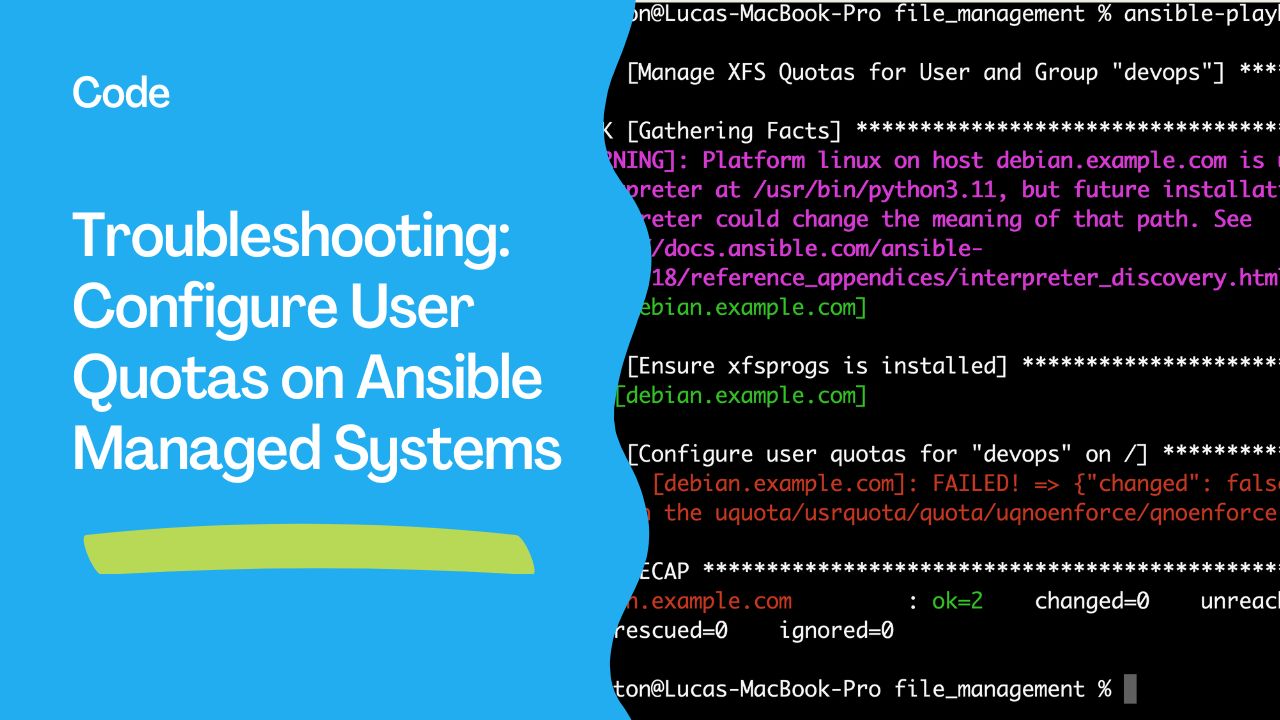
Troubleshooting: Configure User Quotas on Ansible Managed Systems
Learn how to resolve the common error related to user quota configuration using Ansible.
---
Error Summary
When attempting to configure user quotas with Ansible, you might encounter the following error:
TASK [Configure user quotas for "devops" on /] *****************************************
fatal: [debian.example.com]: FAILED! => {"changed": false, "msg": "Path '/' is not mounted with the uquota/usrquota/quota/uqnoenforce/qnoenforce option."}
This error occurs because the file system where quotas are being configured lacks the necessary mount options to support quota management.
---
Root Cause
The file system / is not mounted with the options required for quotas (uquota, usrquota, quota, uqnoenforce, or qnoenforce). These options enable the kernel to track and enforce disk usage limits per user or group.
---
Solution: Enable Quota Support
1. Verify the Current Mount Options
Use themount command to check the mount options for /:
mount | grep ' / '2. Update /etc/fstab to Enable Quotas
Edit the /etc/fstab file to include the required quota options for the root file system. For example:
/dev/sda1 / ext4 defaults,uquota 0 1/dev/sda1 with the appropriate device name for your root file system.
3. Remount the File System
Apply the changes by remounting the root file system:mount -o remount /4. Initialize Quota Management
Run the following commands to set up and enable quota tracking:quotacheck -cum /
quotaon /5. Test Quota Functionality
Ensure that quotas are working as expected:edquota -u devops---
Updating Your Ansible Playbook
Update your Ansible playbook to include tasks for configuring and enabling quotas.
Example Playbook:
- name: Configure quotas for devops user
  hosts: all
  become: yes
  tasks:
    - name: Ensure the quota package is installed
      apt:
        name: quota
        state: present

    - name: Update fstab for quota support
      lineinfile:
        path: /etc/fstab
        regexp: '^(/dev/sda1)'
        line: '/dev/sda1 / ext4 defaults,uquota 0 1'
        backrefs: yes

    - name: Remount root with quota options
      command: mount -o remount /

    - name: Run quotacheck
      command: quotacheck -cum /

    - name: Enable quota management
      command: quotaon /
---
Testing the Playbook
Run the playbook to apply the changes:
ansible-playbook configure-quotas.yml---
Conclusion
By ensuring that the file system is mounted with the correct options and updating your Ansible playbook accordingly, you can resolve the quota configuration error and automate user quota management successfully. This setup improves disk usage management across your infrastructure.
See also: Troubleshooting: Configure User Quotas on XFS File Systems Using Ansible
Related Articles
- how Ansible become works under the hood
- Troubleshooting: Configure User Quotas on XFS File Systems Using Ansible
- Simplify Disk Management with Ansible Quota Module
See also
Category: installation