How to Solve WinRM Configuration Errors in PowerShell
By Luca Berton · Published 2024-01-01 · Category: installation
Discover how to resolve PowerShell Remoting setup errors on Windows, like WinRM firewall exceptions for Public network types.
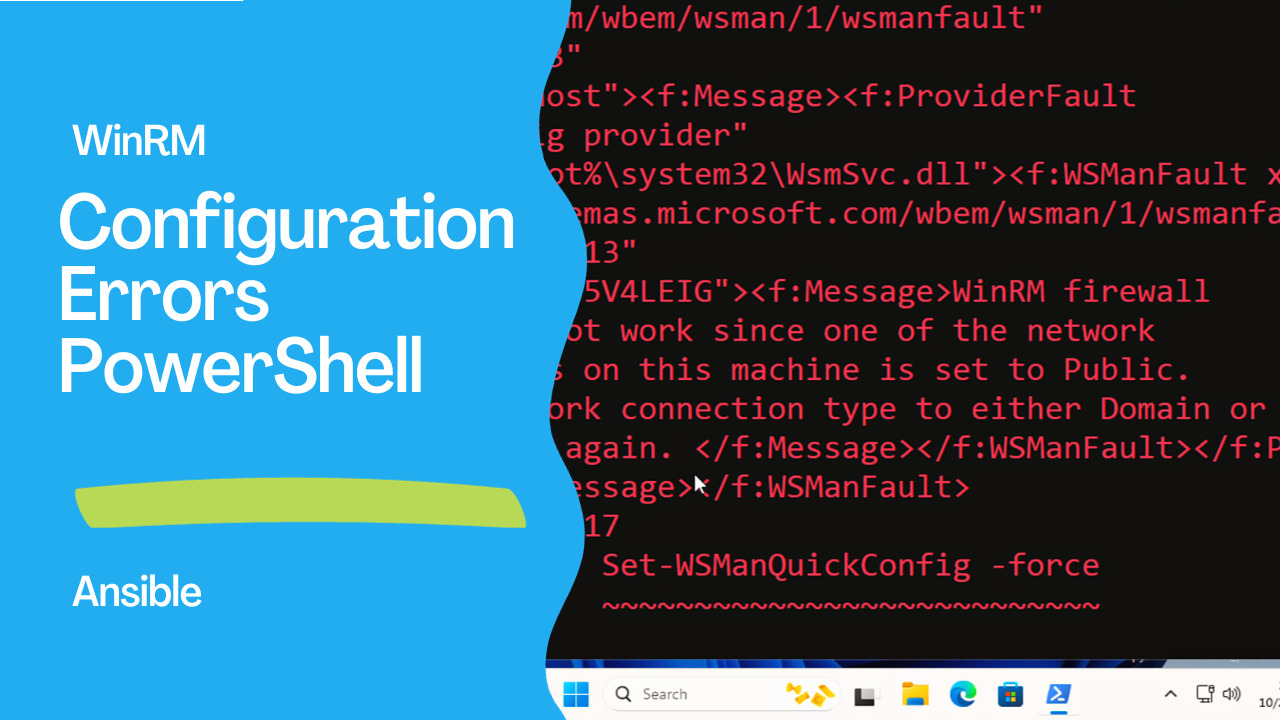
Introduction
PowerShell Remoting is a powerful feature that allows administrators to manage remote systems seamlessly. However, setting up PowerShell Remoting isn’t always a straightforward process. Sometimes, you may encounter errors like the one below when trying to enable PowerShell Remoting:PS C:\Windows\system32> Enable-PSRemoting
WinRM has been updated to receive requests.
WinRM service type changed successfully.
WinRM service started.
Set-WSManQuickConfig : <f:WSManFault xmlns:f="http://sche
mas.microsoft.com/wbem/wsman/1/wsmanfault"
Code="2150859113"
Machine="localhost"><f:Message><f:ProviderFault
provider="Config provider"
path="%systemroot%\system32\WsmSvc.dll"><f:WSManFault xml
ns:f="http://schemas.microsoft.com/wbem/wsman/1/wsmanfaul
t" Code="2150859113"
Machine="DESKTOP-5V4LEIG"><f:Message>WinRM firewall
exception will not work since one of the network
connection types on this machine is set to Public.
Change the network connection type to either Domain or
Private and try again. </f:Message></f:WSManFault></f:Pro
viderFault></f:Message></f:WSManFault>
At line:116 char:17
+ Set-WSManQuickConfig -force
+ ~~~~~~~~~~~~~~~~~~~~~~~~~~~
+ CategoryInfo : InvalidOperation: (:) [Set
-WSManQuickConfig], InvalidOperationException
+ FullyQualifiedErrorId : WsManError,Microsoft.WSMan
.Management.SetWSManQuickConfigCommand
PS C:\Windows\system32>This error message indicates that the WinRM (Windows Remote Management) configuration is encountering issues related to network connection types, typically when the network connection is set to “Public.” In this article, we’ll guide you through solving this issue and enabling PowerShell Remoting on your Windows system.
Understanding the Error
The error message you encountered is quite descriptive. It tells us that the WinRM configuration failed because the network connection type is set to “Public.” WinRM firewall exceptions are not enabled for “Public” network profiles, which is a security measure in Windows. To resolve this issue, we need to change the network connection type to either “Domain” or “Private.”See also: Configure WSL in a Domain Environment: Step-by-Step Guide
Step-by-Step Solution
Follow these steps to solve the WinRM configuration error and enable PowerShell Remoting:1. Open PowerShell as Administrator
Make sure you run PowerShell as an administrator to have the necessary permissions to modify the network settings.2. Check Current Network Connection Profile
Run the following command to check the current network connection profile:Get-NetConnectionProfileThis command will provide information about your network connection. Note the name of the network profile, as it will help you choose the appropriate network profile to set.
3. Change Network Connection Profile
Use the Set-NetConnectionProfile cmdlet to change the network connection profile to "Domain" or "Private." For example, if your network profile is currently set to "Public," you can change it as follows:Set-NetConnectionProfile -Name "NetworkName" -NetworkCategory PrivateReplace "NetworkName" with the actual name of your network connection profile. If you are on a domain network, you can use "Domain" as the network category instead of "Private."
4. Verify the Change
Run the Get-NetConnectionProfile command again to ensure that the network connection profile has been updated to "Domain" or "Private.5. Enable PowerShell Remoting
Now that your network connection profile is set to “Domain” or “Private,” you can enable PowerShell Remoting using the following command:Enable-PSRemoting -ForceThis command will configure WinRM for remote management, and you should not encounter the previous error.
WinRM is already set up to receive requests on this computer.
WinRM has been updated for remote management.
WinRM firewall exception enabled.
Configured LocalAccountTokenFilterPolicy to grant administrative rights remotely to local users.
6. Verify PowerShell Remoting
You can verify that PowerShell Remoting is working correctly by running a simple test. For example, try to establish a remote session to your own computer:Enter-PSSession -ComputerName localhostIf you can connect to your local machine, it means PowerShell Remoting is now enabled and functioning as expected.
Links
- https://learn.microsoft.com/en-us/powershell/module/microsoft.powershell.core/enable-psremoting
Conclusion
PowerShell Remoting is a valuable tool for managing remote systems, but it can encounter errors during the configuration process. The error you encountered, related to WinRM and network connection profiles, is a common issue. By following the steps outlined in this article, you can resolve this error, change your network connection profile, and successfully enable PowerShell Remoting on your Windows system. This will empower you to manage remote systems more efficiently and securely.See also: Four Methods to Configure Maximum PowerShell Memory in Windows Server
Related Articles
- Windows management with Ansible
- Configure WSL in a Domain Environment: Step-by-Step Guide
- Four Methods to Configure Maximum PowerShell Memory in Windows Server
See also
Category: installation