Tunneling WinRM via SSH with PSRP
By Luca Berton · Published 2024-01-01 · Category: installation
Learn how to enhance the security of remote management on Windows systems by tunneling WinRM via SSH using the PowerShell Remoting Protocol (PSRP).
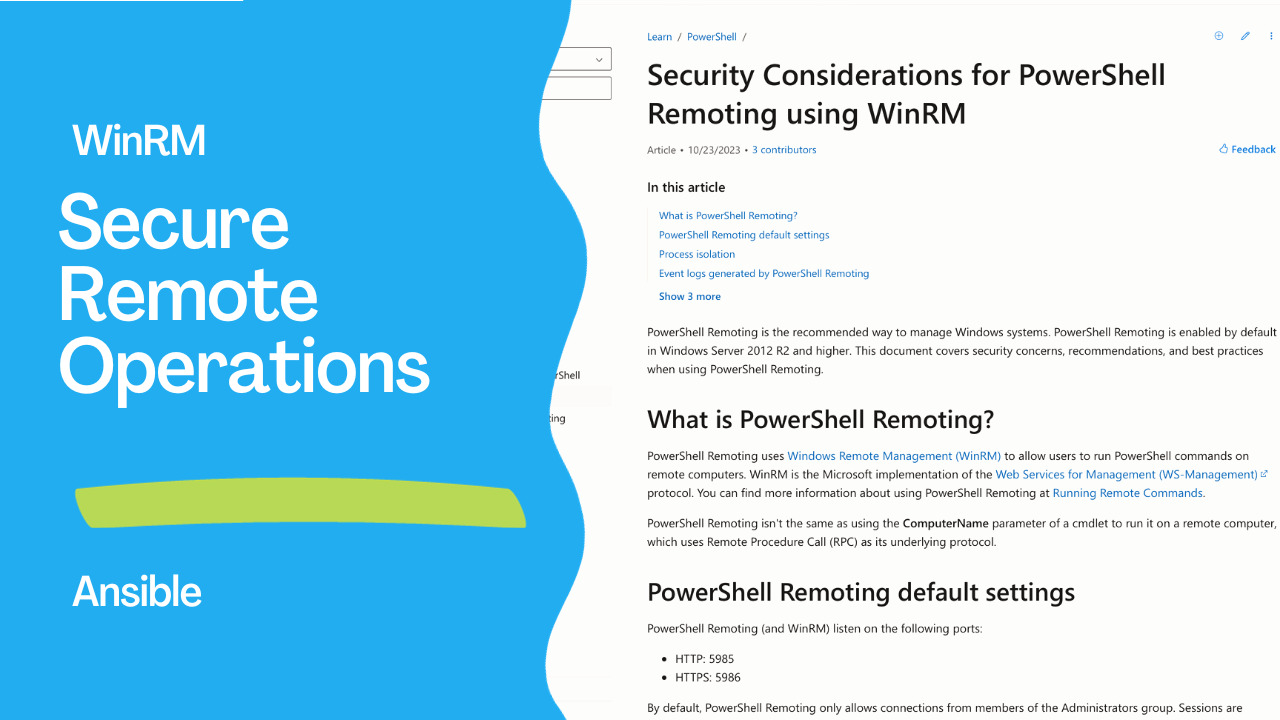
Introduction
Windows Remote Management (WinRM) is a powerful tool that allows you to manage Windows-based systems remotely. On the other hand, Secure Shell (SSH) is a widely used protocol for secure remote communication. Combining the two can provide a secure and versatile solution for managing Windows systems over the network. In this article, we will explore how to tunnel WinRM via SSH using the PSRP (PowerShell Remoting Protocol).What is PSRP?
The PowerShell Remoting Protocol (PSRP) is the underlying protocol used for PowerShell Remoting. It is designed to allow PowerShell commands and scripts to be executed remotely on a Windows machine. By tunneling WinRM through SSH using PSRP, you can enhance the security of your remote management operations, especially in scenarios where traditional WinRM connections might not be feasible due to network restrictions or security concerns.See also: Configure WSL in a Domain Environment: Step-by-Step Guide
Prerequisites
Before we get started, you need to ensure that you have the following prerequisites in place:- A Windows Machine: You’ll need a Windows machine that you want to manage remotely.
- PowerShell 7+: Make sure you have PowerShell 7 or higher installed on both the local and remote Windows machines. PowerShell 7 includes SSH support, which is crucial for tunneling WinRM.
- SSH Server on the Windows Machine: Install and configure an SSH server on the Windows machine that you want to manage. There are several third-party SSH server solutions available for Windows.
- SSH Client: Ensure that you have an SSH client installed on your local machine. You can use native Windows 10 OpenSSH client or third-party tools like PuTTY or WinSCP.
Configuring WinRM for PSRP
To tunnel WinRM via SSH with PSRP, you need to configure WinRM to use the PSRP transport. Follow these steps on the remote Windows machine:- Open PowerShell with administrator privileges on the remote machine.
- Run the following command to configure WinRM to use the PSRP transport:
winrm set winrm/config/client '@{TrustedHosts="*"}'- Next, run the following command to set the WinRM listener to use the PSRP transport:
winrm create winrm/config/listener?Address=*+Transport=HTTP @{Port="5986";Hostname="yourhostname"}Tunneling WinRM via SSH
Now, let’s tunnel WinRM via SSH from your local machine to the remote Windows machine:- Open your SSH client on your local machine.
- Use SSH to connect to the remote Windows machine. The command may look something like this:
ssh username@remote-windows-machineOnce you’ve established an SSH connection, you can use PowerShell to initiate a remote session. Run the following command:
Enter-PSSession -HostName yourhostname -UserName yourusername -SSHTransportReplace "yourhostname" with the hostname or IP address of your Windows machine and "yourusername" with your Windows username.
You will be prompted to enter your Windows password.
Managing Windows Remotely
Now, you have a PowerShell session open on the remote Windows machine through SSH tunneling. You can execute PowerShell commands and scripts just as if you were on the remote machine.Links
- https://learn.microsoft.com/en-us/powershell/scripting/learn/remoting/winrmsecurity
Conclusion
Tunneling WinRM via SSH with PSRP is a powerful way to enhance the security and flexibility of managing Windows systems remotely. By using SSH as a secure transport for WinRM, you can navigate network restrictions and ensure that your remote management tasks are executed securely. This approach is especially valuable in scenarios where traditional WinRM connections are not feasible or where enhanced security is a top priority.See also: Four Methods to Configure Maximum PowerShell Memory in Windows Server
Related Articles
Category: installation