Elevating Ansible Development with Visual Studio Code
By Luca Berton · Published 2024-01-01 · Category: installation
Setting Up Visual Studio Code for Ansible YAML Development. Practical examples and step-by-step guidance on Elevating Ansible Development with Visual Studio.
Introduction
Visual Studio Code (VS Code) is a powerful and versatile code editor that supports a wide range of programming languages and extensions. If you are working with Ansible, the popular automation tool, you can enhance your development experience by setting up VS Code with the Ansible extension. In this guide, we will walk through the process of installing and configuring the Ansible VS Code extension for YAML code language, allowing you to leverage Ansible Lightspeed with IBM WatsonX Code Assistant functionality.See also: Ansible Development: Write Custom Modules, Plugins & Collections
Prerequisites
Before you begin, ensure that you have the following:- Visual Studio Code (or a supported derivative) installed, with a minimum version of 1.70.1.
Installing the Ansible VS Code Extension
Follow these steps to install the Ansible VS Code extension:
- Open VS Code: Launch Visual Studio Code on your machine.
- Access Extensions: Click on the Extensions icon located on the left sidebar. You can also use the keyboard shortcut
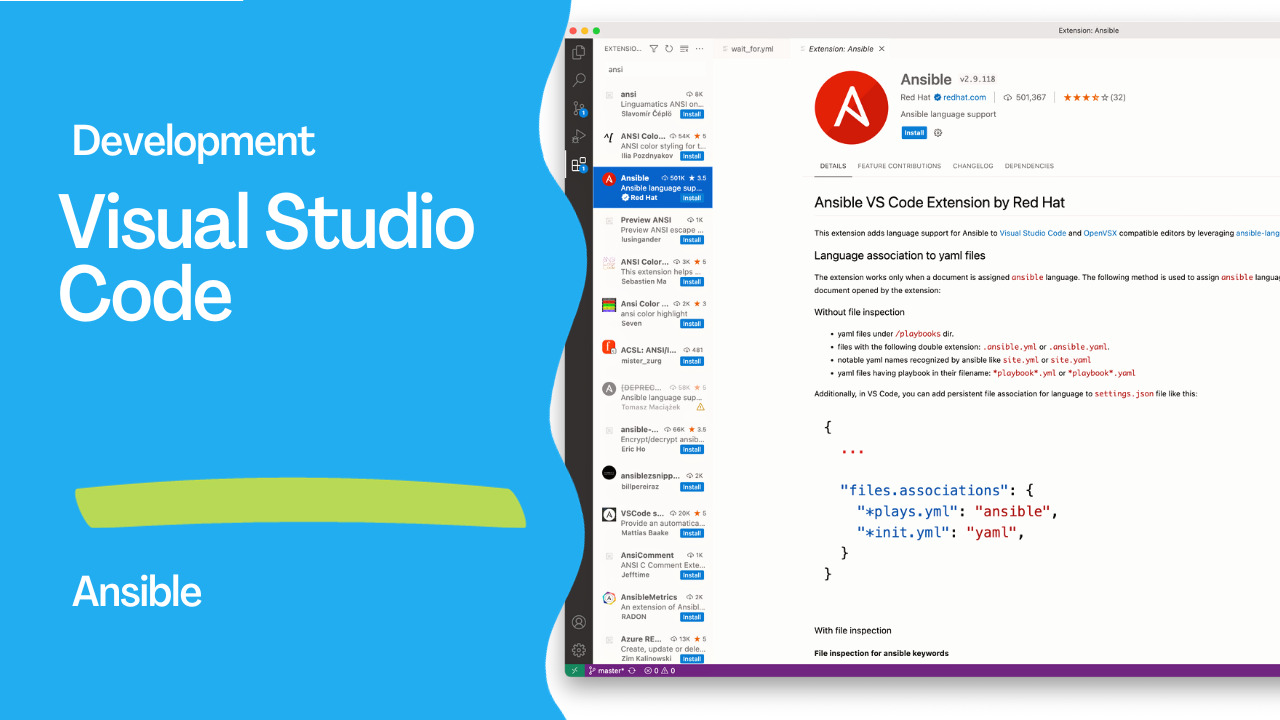
Ctrl+Shift+X (Windows/Linux)orCmd+Shift+X (Mac)to open the Extensions view. - Search for Ansible: In the Extensions view search box, type “Ansible” to filter the available extensions.
- Install Ansible Extension: Look for the Ansible language support extension published by Red Hat. Click on it to select the extension, and then click the “Install” button to begin the installation.
- Verify Installation: To confirm that the Ansible extension is successfully installed, follow these steps:
- Create a new YAML file with the file extension “
.yml” or “.yaml”. - Click on the language indicator located on the right side of the Status Bar.
- From the dropdown menu, select “Ansible” to associate the Ansible language type with the YAML file.

Start Writing Playbooks: With the Ansible extension installed and associated with your YAML file, you’re ready to start writing Ansible playbooks. As you create your content, you should see contextual aids and suggestions provided by Ansible Lightspeed with IBM WatsonX Code Assistant functionality.
By following these steps, you’ve successfully set up Visual Studio Code for Ansible YAML development. The Ansible extension enhances your workflow by providing intelligent code completion and assistance, making it easier to create and maintain Ansible playbooks efficiently. Explore the capabilities of the extension to streamline your Ansible automation projects within the VS Code environment.
Conclusion
In conclusion, integrating the Ansible VS Code extension into your development environment significantly enhances your experience when working with Ansible YAML code. By following the simple steps outlined in this guide, you can seamlessly set up Visual Studio Code to leverage the advanced features offered by the Ansible extension.With the extension installed, you gain access to Ansible Lightspeed with IBM WatsonX Code Assistant functionality, empowering you with intelligent code completion and contextual aids. This not only improves the accuracy and efficiency of your coding but also streamlines the development of Ansible playbooks.
Visual Studio Code’s versatility and the Ansible extension’s capabilities make for a powerful combination, providing a feature-rich environment for managing and automating your IT infrastructure. Whether you’re a seasoned Ansible user or just getting started, this setup ensures a smoother and more productive development process.
As you continue to explore Ansible automation within Visual Studio Code, take advantage of the extension’s features to optimize your workflows and enhance collaboration. The combination of an intuitive code editor and Ansible’s automation prowess opens up new possibilities for managing and orchestrating complex systems with ease.
Incorporate these tools into your daily development routine, and experience firsthand how Visual Studio Code, coupled with the Ansible extension, can elevate your Ansible YAML development to new heights. Happy coding!
See also: Ansible Lightspeed with IBM watsonx Code Assistant: AI-Powered Automation Development
Related Articles
Category: installation
Watch the video: Elevating Ansible Development with Visual Studio Code — Video Tutorial