Ansible troubleshooting - Windows 10 Error 0x80370102 WSL: Windows Subsystem for Linux
By Luca Berton · Published 2024-01-01 · Category: installation
How to troubleshoot the Windows 10 WSL: Windows Subsystem for Linux - Error: 0x80370102 The virtual machine could not be started because a required feature.
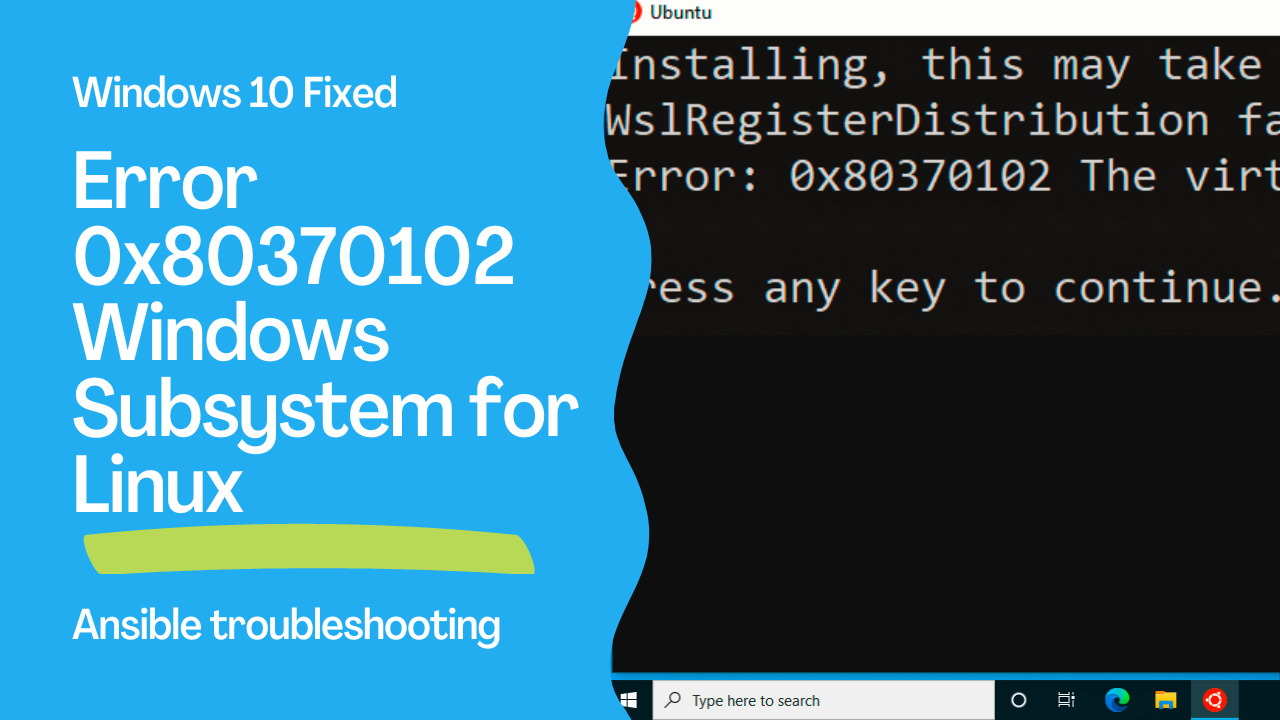
Today we're going to talk about Ansible troubleshooting, specifically about Windows Subsystem for Linux error 0x80370102.
Windows Subsystem for Linux - Ubuntu distribution
Installing, this may take a few minutes...
WslRegisterDistribution failed with error: 0x80370102
Error: 0x80370102 The virtual machine could not be started because a required feature is not installed.
Press any key to continue...
This is the full error message that you might encounter whether you run the Windows Subsystem for Linux - Ubuntu distribution.
## Playbook
The best way of talking about Ansible troubleshooting is to jump in a live Playbook to show you practically the error 0x80370102 Windows Subsystem for Linux and how to solve it! Live Playbook of Error 0x80370102 Windows Subsystem for Linux and fix on Windows version 10.0.19043 Build 19043.
error code
- error reproducer WSL installation
Windows PowerShell
Copyright (C) Microsoft Corporation. All rights reserved.Try the new cross-platform PowerShell https://aka.ms/pscore6
PS C:\Users\user> wsl --install
Installing: Virtual Machine Platform
Virtual Machine Platform has been installed.
Installing: Windows Subsystem for Linux
Windows Subsystem for Linux has been installed.
Downloading: WSL Kernel
Installing: WSL Kernel
WSL Kernel has been installed.
Downloading: Ubuntu
The requested operation is successful. Changes will not be effective until the system is rebooted.
PS C:\Users\user>- error reproducer Ubuntu WSL
Installing, this may take a few minutes...
WslRegisterDistribution failed with error: 0x80370102
Error: 0x80370102 The virtual machine could not be started because a required feature is not installed.
Press any key to continue...
Windows Subsystem for Linux version 2 need enabled Windows features:
Windows Subsystem for Linux
Hyper-V Platform
Hyper-V Hypervisor
workaround
- workaround for unsupported CPU or Virtualization environment
wsl --update
wsl --set-default-version 1
wsl --list -o
wsl --install -d Ubuntu
workaround execution
outputWindows PowerShell
Copyright (C) Microsoft Corporation. All rights reserved.
Try the new cross-platform PowerShell https://aka.ms/pscore6
PS C:\Users\user> wsl --set-default-version 1
The operation completed successfully.
PS C:\Users\user> wsl --update
Checking for updates...
The Windows Subsystem for Linux kernel can be manually updated with 'wsl --update', but automatic updates cannot occur due to your system settings.
To receive automatic kernel updates, please enable the Windows Update setting: 'Receive updates for other Microsoft products when you update Windows'.
For more information please visit https://aka.ms/wsl2kernel.
PS C:\Users\user> wsl --list -o
The following is a list of valid distributions that can be installed.
Install using 'wsl --install -d <Distro>'.
NAME FRIENDLY NAME
Ubuntu Ubuntu
Debian Debian GNU/Linux
kali-linux Kali Linux Rolling
openSUSE-42 openSUSE Leap 42
SLES-12 SUSE Linux Enterprise Server v12
Ubuntu-16.04 Ubuntu 16.04 LTS
Ubuntu-18.04 Ubuntu 18.04 LTS
Ubuntu-20.04 Ubuntu 20.04 LTS
PS C:\Users\user> wsl --install -d Ubuntu
Ubuntu is already installed.
Launching Ubuntu...
PS C:\Users\user>
Installing, this may take a few minutes...
Please create a default UNIX user account. The username does not need to match your Windows username.
For more information visit: https://aka.ms/wslusers
Enter new UNIX username: ansiblepilot
New password:
Retype new password:
passwd: password updated successfully
Installation successful!
To run a command as administrator (user "root"), use "sudo <command>".
See "man sudo_root" for details.
Welcome to Ubuntu 20.04 LTS (GNU/Linux 4.4.0-19041-Microsoft x86_64)
* Documentation: https://help.ubuntu.com
* Management: https://landscape.canonical.com
* Support: https://ubuntu.com/advantage
System information as of Tue Oct 26 15:28:03 UTC 2021
System load: 0.52 Users logged in: 0
Usage of /home: unknown IPv4 address for eth0: 10.0.2.15
Memory usage: 62% IPv4 address for eth1: 169.254.149.103
Swap usage: 1% IPv4 address for eth1: 192.168.0.202
Processes: 7
0 updates can be installed immediately.
0 of these updates are security updates.
The list of available updates is more than a week old.
To check for new updates run: sudo apt update
This message is shown once once a day. To disable it please create the
/home/ansiblepilot/.hushlogin file.
ansiblepilot@Playbook:~$
See also: Ansible troubleshooting - Windows 11 Error 0x80370102 WSL: Windows Subsystem for Linux
Conclusion
Now you know how to troubleshoot the Windows Subsystem for Linux error 0x80370102.Related Articles
- Windows DSC and Ansible
- Ansible troubleshooting - Windows 11 Error 0x80370102 WSL: Windows Subsystem for Linux
- Ansible troubleshooting - Module Failure on Windows-target
See also: Ansible troubleshooting - Module Failure on Windows-target
Root Cause
Error 0x80370102 means virtualization is not enabled at the hardware or OS level. WSL 2 requires Hyper-V virtualization, which needs:
- CPU virtualization enabled in BIOS (Intel VT-x or AMD-V)
- Hyper-V or Virtual Machine Platform Windows feature enabled
- No conflicting hypervisor (e.g., VirtualBox with Hyper-V disabled)
Fix Steps
Step 1: Enable Virtualization in BIOS
Restart your computer, enter BIOS/UEFI settings, and enable:
- Intel: Intel VT-x or Intel Virtualization Technology
- AMD: AMD-V or SVM Mode
Step 2: Enable Windows Features
# Run PowerShell as Administrator
dism.exe /online /enable-feature /featurename:Microsoft-Windows-Subsystem-Linux /all /norestart
dism.exe /online /enable-feature /featurename:VirtualMachinePlatform /all /norestart

# Restart
Restart-Computer
Step 3: Set WSL 2 as Default
wsl --set-default-version 2
wsl --update
Step 4: Install and Use Ansible in WSL
# Inside WSL (Ubuntu)
sudo apt update && sudo apt install -y ansible

# Verify
ansible --version

# Test connectivity to Windows host
ansible windows -m ansible.windows.win_ping -i inventory.ini
FAQ
Can I run Ansible directly on Windows without WSL?
Ansible control node requires a Unix-like OS. WSL is the recommended way to run Ansible on Windows. Alternatively, use a Linux VM or container.
Does this error affect WSL 1?
No. Error 0x80370102 is specific to WSL 2, which requires hardware virtualization. WSL 1 doesn't need virtualization but has limitations (no Linux kernel, slower filesystem).
Can I use Ansible in WSL to manage the Windows host?
Yes. Configure WinRM on Windows, then connect from WSL using ansible_connection=winrm in your inventory.
Category: installation
Watch the video: Ansible troubleshooting - Windows 10 Error 0x80370102 WSL: Windows Subsystem for Linux — Video Tutorial