What you'll learn
- How to configure a Windows Host for Ansible?
- Configure a Windows Host for Ansible
- Links
- Windows node
- Verify PowerShell, .NET and set up WinRM
- Ansible Controller
- Harden the connection for production (NTLM over HTTPS)
- Conclusion
- Related Articles
How to configure a Windows Host for Ansible?
I'll show you step by step on a freshly installed machine how to configure a "basic" authentication, use a Local Accounts for authentication and successfully execute a simple "win_ping" Ansible Playbook.
This initial configuration sometimes is a roadblock for some Windows users to start using Ansible.
Configure a Windows Host for Ansible
- Windows 7, 8.1, 10, 11
- Windows Server 2008, 2008 R2, 2012, 2012 R2, 2016, 2019, 2022
- PowerShell 3.0+ and .NET 4.0+
- WinRM or OpenSSH (experimental)
The supported nodes include all the modern releases of Windows Desktop and Server.
The full list includes Windows 7, 8.1, 10, 11, and Windows Server 2008, 2008 R2, 2012, 2012 R2, 2016, 2019, 2022.
Ansible requires PowerShell 3.0 or newer and at least .NET 4.0 to be installed on the Windows host.
You need to upgrade only old Windows 7 and Windows Server 2008 nodes.
The communication between Ansible Controller and the target node is executed via a WinRM listener that needs to be created and activated.
Ansible 2.8 has added an experimental SSH connection for Windows-managed nodes for Windows 10+ clients and Windows Server 2019+.
In this example, we're going to cover the WinRM connection method with "basic" authentication.
Refer to manual for more WinRM wide range of configuration options.
Links
- [Setting up a Windows Host](https://docs.ansible.com/ansible/latest/user_guide/windows_setup.html)
- [Windows Remote Management](https://docs.ansible.com/ansible/latest/user_guide/windows_winrm.html)
## Playbook
How to configure a Windows Host for Ansible connections.
- Create a user
- verify PowerShell & .NET
- setup WinRM
- create Inventory & Playbook
First of all, I'd suggest creating a user to run Ansible automation. This user needs to be Power User or have Administrative privileges in order to execute some Ansible code.
Second, you need to verify that PowerShell and .NET versions, modern operating systems already meet the requirements.
The most important part is to set up the WinRM. There is a great PowerShell script that sets up both HTTP and HTTPS listeners with a self-signed certificate and enables the Basic authentication option on the service.
Once everything is done on the node you could configure the Ansible inventory on the Ansible Controller machine and run your first Ansible Playbook with the `win_ping` module to verify the successful configuration.
Windows node
Create an "ansible" user
1. open Computer Management (right-click from "This PC" > "Manage")
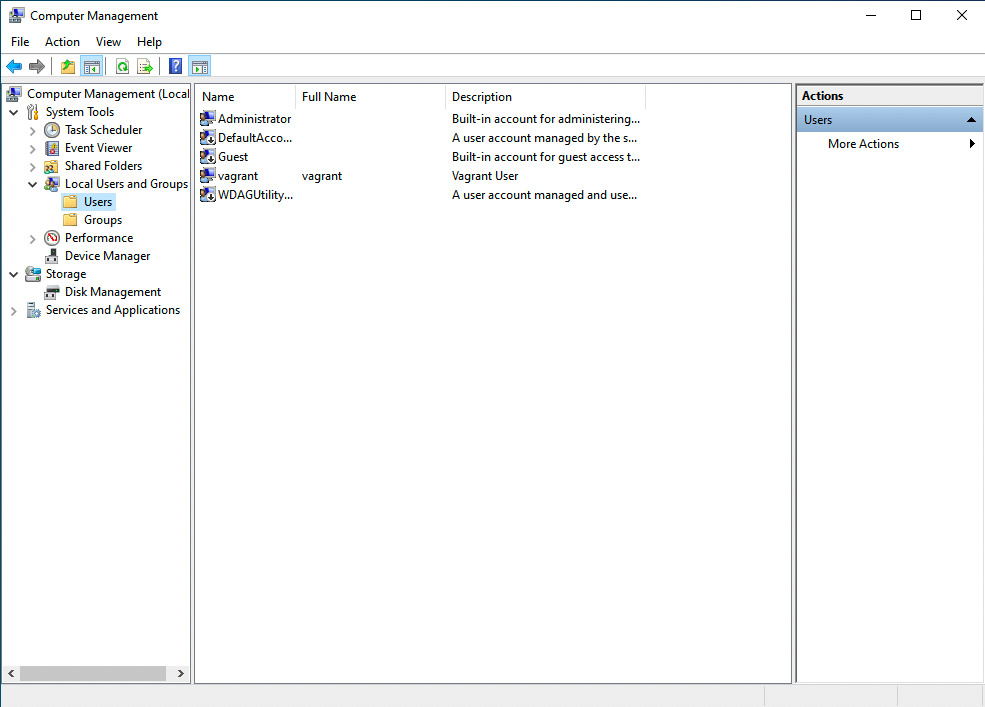
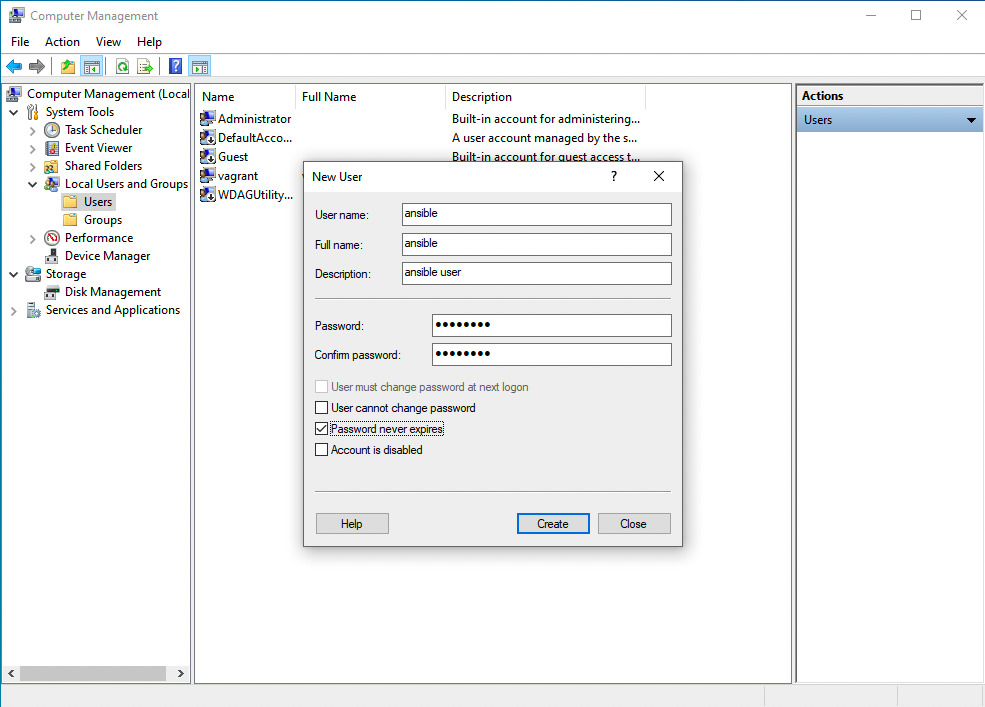
2. New User (right-click from "Users" > "New User")
User name: **ansible**
Full name: **ansible**
Description: **ansible user**
Password and Confirm password: **SuperSecurePassword123@**
Options: enable `Password never expires` disable `User must change password at next logon`
3. Add "ansible" user to "administrators" Gr