Automating Distributed File System Replication (DFSR) with Ansible
By Luca Berton · Published 2024-01-01 · Category: installation
Discover how to set up and automate Distributed File System Replication (DFSR) with Ansible. Ensure reliable, scalable file synchronization and replication.
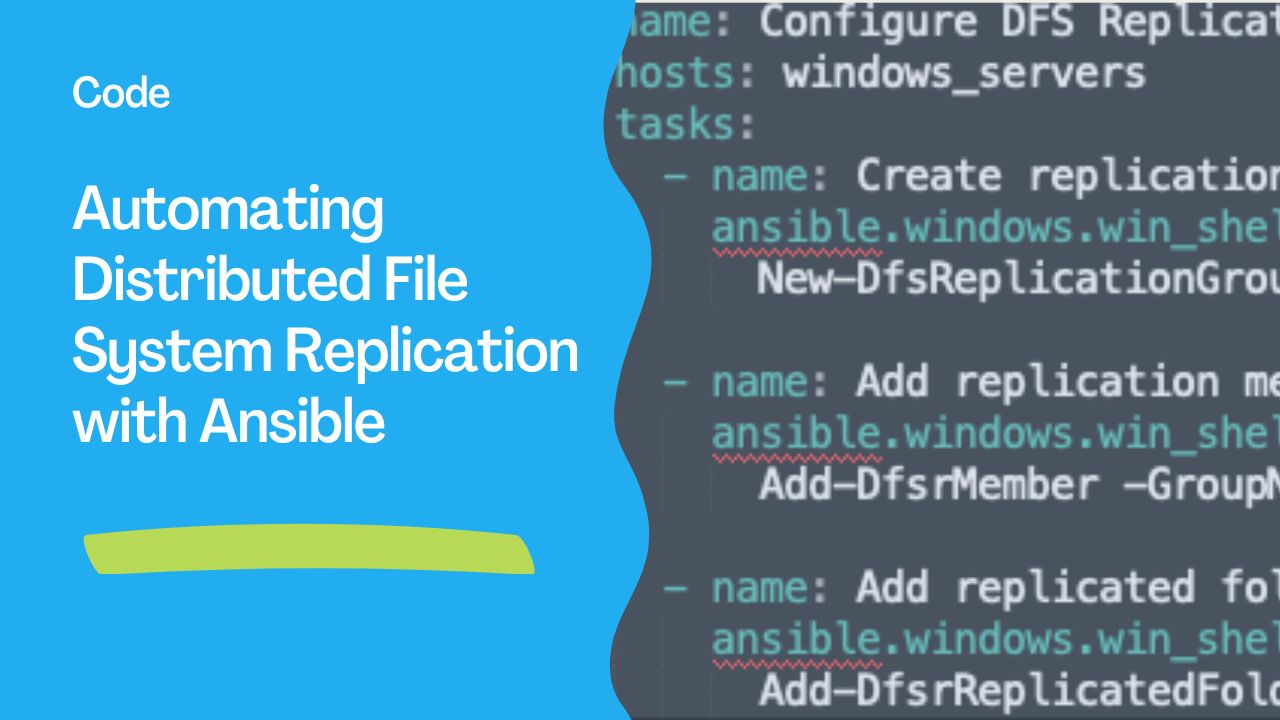
Distributed File System Replication (DFSR) is a powerful feature that ensures files are synchronized across multiple servers in a network. Paired with Ansible automation, DFSR becomes even more effective, enabling IT administrators to efficiently manage and deploy replication configurations across systems.
---
What is Distributed File System Replication (DFSR)?
DFSR is a feature in Microsoft Windows Server that replicates files between servers in a Distributed File System (DFS). It ensures:
- Data Consistency: Synchronizes files across multiple locations.
- High Availability: Provides redundant copies of data to ensure access in case of server failure.
- Efficient Bandwidth Use: Uses Remote Differential Compression (RDC) to replicate only changed portions of a file.
---
See also: Automating Butt Plugin Configuration and Management with Ansible
Why Use Ansible for DFSR Automation?
- Time Savings: Automate repetitive tasks such as adding replication members or monitoring synchronization status.
- Scalability: Configure DFSR on multiple servers simultaneously.
- Consistency: Ensure replication settings are uniform across your environment.
- Error Reduction: Minimize configuration mistakes with reliable playbooks.
Setting Up Distributed File System Replication (DFSR)
Manual Steps
- Install DFS Management Tools:
- On Windows Server, use Server Manager to add the DFS Management feature.
- Create a DFS Namespace:
- Define the logical folder structure for accessing replicated files.
- Configure Replication Groups:
- Specify which servers will replicate files and their respective folders.
- Monitor Replication:
- Use DFS Management Console or PowerShell to check replication health.
Automating with Ansible
Example Playbook for Installing DFSR
This playbook installs DFSR on Windows servers.- name: Install DFSR on Windows Servers
hosts: windows_servers
tasks:
- name: Install DFS Management Tools
ansible.windows.win_feature:
name: RSAT-DFS-Mgmt-Con
state: present
- name: Install DFS Replication
ansible.windows.win_feature:
name: FS-DFS-Replication
state: present---
Example Playbook for Creating a DFS Namespace
This playbook creates a DFS namespace for organizing shared folders.- name: Create DFS Namespace
hosts: windows_servers
tasks:
- name: Create DFS namespace
ansible.windows.win_shell: >
New-DfsnRoot -Path "\\domain.local\DFSNamespace" -TargetPath "D:\SharedData" -Type DomainV2---
Example Playbook for Configuring Replication Groups
This playbook sets up replication groups for file synchronization.- name: Configure DFS Replication Group
hosts: windows_servers
tasks:
- name: Create replication group
ansible.windows.win_shell: >
New-DfsReplicationGroup -GroupName "ReplicationGroup1" -Description "File Replication for SharedData"
- name: Add replication members
ansible.windows.win_shell: >
Add-DfsrMember -GroupName "ReplicationGroup1" -ComputerName "Server1", "Server2"
- name: Add replicated folder
ansible.windows.win_shell: >
Add-DfsrReplicatedFolder -GroupName "ReplicationGroup1" -FolderName "SharedData" -FolderPath "D:\SharedData"---
Example Playbook for Monitoring Replication
This playbook checks the status of DFS replication.- name: Monitor DFS Replication
hosts: windows_servers
tasks:
- name: Check DFSR health
ansible.windows.win_shell: >
Get-DfsrBacklog -GroupName "ReplicationGroup1" -SourceComputerName "Server1" -DestinationComputerName "Server2"
register: replication_status
- name: Display replication backlog
ansible.builtin.debug:
msg: "{{ replication_status.stdout }}"---
See also: Effective Techniques to Clear Host Errors in Ansible Playbooks
Tips for Managing DFSR with Ansible
- Use Templates:
- Create Ansible roles for reusable DFSR configurations.
- Monitor Regularly:
- Automate health checks to ensure replication remains operational.
- Secure Configurations:
- Use Ansible Vault to encrypt sensitive information like credentials.
- Document Changes:
- Log playbook execution results for audit and troubleshooting purposes.
Advantages of Combining DFSR and Ansible
- Centralized Management:
- Control and monitor replication settings across multiple servers from a single location.
- Faster Deployment:
- Automate time-intensive tasks like setting up namespaces and replication groups.
- Improved Reliability:
- Ensure consistent and accurate configurations with reusable playbooks.
Distributed File System Replication (DFSR), when paired with Ansible automation, provides a scalable and reliable solution for synchronizing files across distributed systems. Whether managing a small team or a large enterprise, this approach simplifies replication tasks and enhances overall efficiency.
See also: Browser in a Browser Proxy with Ansible Automation
Related Articles
- rendering files with Ansible template
- Ansible Windows playbook patterns
- Ansible Vault best practices
- Ansible become guide
- understanding Ansible roles
See also
Category: installation