Task Manager in macOS X with Ansible Automation
By Luca Berton · Published 2024-01-01 · Category: installation
Learn how to use the macOS X Task Manager to monitor and control processes. Automate process management and monitoring with Ansible for efficiency.
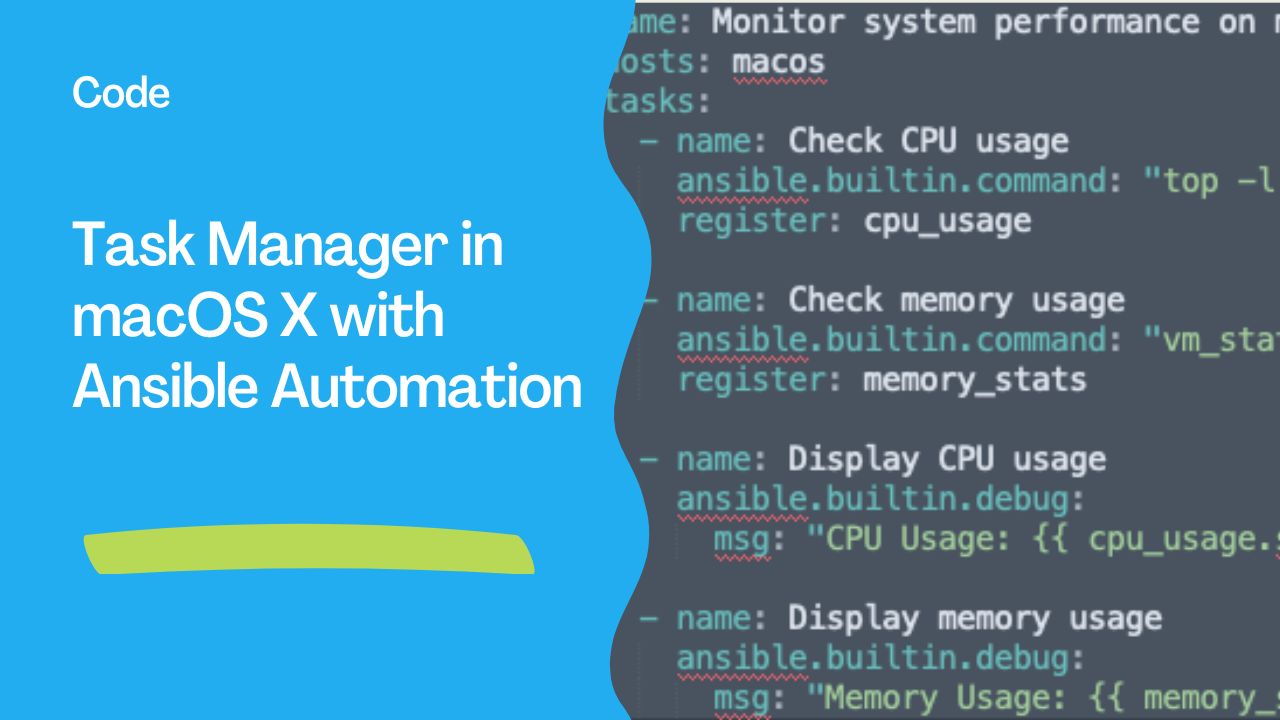
The Task Manager in macOS X, commonly referred to as Activity Monitor, is a powerful tool to monitor and manage system processes. Paired with Ansible automation, you can efficiently control, monitor, and optimize system performance on macOS devices at scale.
---
What is the Task Manager in macOS X?
In macOS X, the Activity Monitor serves as the Task Manager equivalent. It provides insights into:
- CPU Usage: Shows processes consuming CPU resources.
- Memory Usage: Displays how RAM is allocated.
- Energy Usage: Monitors power consumption of apps.
- Disk Activity: Tracks data read/write rates.
- Network Usage: Reports on data sent and received.
---
See also: Ansible on macOS 14 Sonoma Automation Complete Guide
Why Use Ansible with Task Manager in macOS?
- Automation at Scale: Manage processes across multiple macOS devices programmatically.
- Consistency: Standardize task execution and monitoring using reusable Ansible playbooks.
- Efficiency: Save time by automating repetitive tasks like process checks or system health reports.
- Remote Management: Execute commands and monitor systems remotely.
How to Use the Task Manager in macOS
Manual Steps
- Access Activity Monitor:
- Open Spotlight (
Cmd + Space) and type "Activity Monitor". - Navigate through tabs to monitor CPU, memory, energy, disk, and network usage.
- Terminate Processes:
- Identify a process consuming resources.
- Select it and click the X button to terminate.
- Monitor System Performance:
- Use the Activity Monitor to analyze system performance metrics.
Automating with Ansible
Ansible provides a seamless way to automate system monitoring and management tasks on macOS. By leveraging ansible.builtin.command and other modules, you can programmatically handle process control, resource monitoring, and metric gathering across multiple systems. Below are expanded examples of playbooks that demonstrate how to integrate macOS process management into your Ansible workflows.
Example Playbook for Monitoring System Resources
This playbook monitors CPU usage on macOS, allowing administrators to quickly gather performance metrics without manually accessing each machine.- name: Monitor system performance on macOS
hosts: macos
tasks:
- name: Check CPU usage
ansible.builtin.command: "top -l 1 | grep 'CPU usage'"
register: cpu_usage
- name: Check memory usage
ansible.builtin.command: "vm_stat"
register: memory_stats
- name: Display CPU usage
ansible.builtin.debug:
msg: "CPU Usage: {{ cpu_usage.stdout }}"
- name: Display memory usage
ansible.builtin.debug:
msg: "Memory Usage: {{ memory_stats.stdout }}"How It Works:
top -l 1: Retrieves a snapshot of system performance.vm_stat: Gathers detailed memory usage statistics.- Registered variables
cpu_usageandmemory_statsstore the command output, which is displayed usingansible.builtin.debug.
Example Playbook for Killing a Process
This playbook identifies and terminates processes consuming excessive system resources.- name: Kill a process on macOS
hosts: macos
tasks:
- name: Find process ID of a specific process
ansible.builtin.command: "pgrep -f 'process_name'"
register: process_id
- name: Terminate the process if running
ansible.builtin.command: "kill -9 {{ process_id.stdout }}"
when: process_id.stdout != ""
- name: Confirm process termination
ansible.builtin.command: "ps -p {{ process_id.stdout }}"
register: termination_status
ignore_errors: yes
- name: Display termination status
ansible.builtin.debug:
msg: >-
Process {{ process_id.stdout }} terminated successfully
if "{{ termination_status.rc }}" is not 0 else "Process still running."How It Works:
pgrep -f 'process_name': Finds the process ID (PID) of the specified process.kill -9: Forcefully terminates the identified process.- The playbook verifies if the process was successfully terminated using
ps -p.
---
Example Playbook for Gathering System Metrics
This playbook collects comprehensive metrics for macOS systems, focusing on disk, network, and memory usage.- name: Gather macOS system metrics
hosts: macos
tasks:
- name: Get memory usage
ansible.builtin.command: "vm_stat"
register: memory_stats
- name: Get disk usage
ansible.builtin.command: "df -h"
register: disk_stats
- name: Get network statistics
ansible.builtin.command: "netstat -i"
register: network_stats
- name: Display memory usage
ansible.builtin.debug:
msg: "Memory Usage: {{ memory_stats.stdout }}"
- name: Display disk usage
ansible.builtin.debug:
msg: "Disk Usage: {{ disk_stats.stdout }}"
- name: Display network statistics
ansible.builtin.debug:
msg: "Network Statistics: {{ network_stats.stdout }}"How It Works:
vm_stat: Provides memory usage details such as free, active, and inactive memory.df -h: Displays disk space usage in human-readable format.netstat -i: Lists detailed network interface statistics.
- Monitor multiple systems in a fleet by centralizing metric collection.
- Use registered variables to trigger alerts or generate reports based on thresholds.
Advanced Usage with Ansible
Dynamic Monitoring Playbook
This example adds conditional checks to identify systems that exceed performance thresholds, triggering alerts or taking corrective actions.- name: Dynamic monitoring and alerting for macOS
hosts: macos
tasks:
- name: Check CPU usage
ansible.builtin.command: "top -l 1 | grep 'CPU usage'"
register: cpu_usage
- name: Parse CPU usage
set_fact:
cpu_percentage: "{{ cpu_usage.stdout | regex_search('\\d+\\.\\d+', '\\g<0>') | float }}"
- name: Alert if CPU usage exceeds 80%
ansible.builtin.debug:
msg: "High CPU usage detected: {{ cpu_percentage }}%"
when: cpu_percentage > 80
- name: Log high CPU usage
ansible.builtin.copy:
content: "High CPU usage of {{ cpu_percentage }}% detected on {{ inventory_hostname }}.\n"
dest: "/var/log/high_cpu_alert.log"
when: cpu_percentage > 80How It Works:
regex_search: Extracts the numerical value of CPU usage from the command output.- Conditional tasks log high CPU usage to a file and display an alert when thresholds are breached.
Benefits of Automating macOS Task Management with Ansible
- Scalability:
- Manage and monitor multiple macOS devices using a single Ansible playbook.
- Efficiency:
- Reduce the time spent on manual performance checks and troubleshooting.
- Consistency:
- Ensure uniform monitoring and management standards across your environment.
- Error Reduction:
- Eliminate human errors associated with manual task execution.
---
See also: Ansible on macOS 15 Sequoia Automation Complete Guide
System Requirements for Running Ansible on macOS
- macOS Version: macOS X 10.13 or later.
- Python: Ensure Python 3 is installed on the macOS system.
- Ansible: Install Ansible using
pip install ansible.
Tips for Efficient Task Management
- Automate Processes: Use Ansible playbooks to schedule recurring tasks like system checks.
- Customize Playbooks: Tailor commands to match specific macOS monitoring needs.
- Use Secure Connections: Leverage SSH for secure communication between Ansible and macOS.
- Combine Tools: Integrate Activity Monitor data with Ansible reports for a comprehensive view.
See also: Ansible on macOS 26 Tahoe Automation Complete Guide
Advantages of Combining Task Manager and Ansible
- Scalable Monitoring: Automate system monitoring across multiple macOS devices.
- Real-Time Insights: Use Ansible to fetch and analyze live performance data.
- Simplified Process Management: Quickly terminate or manage processes remotely.
The Task Manager in macOS X (Activity Monitor) and Ansible automation together offer a powerful solution for managing system processes and monitoring performance at scale. Whether you're an IT professional managing a fleet of macOS devices or a developer optimizing your workflow, this approach ensures efficiency and consistency.
Related Articles
Category: installation