Fix Google Pixel Bootloop Sideloading OTA update
By Luca Berton · Published 2024-01-01 · Category: installation
How to use Android Studio tools fastboot, recovery mode, and ADB sideload OTA update
Introduction
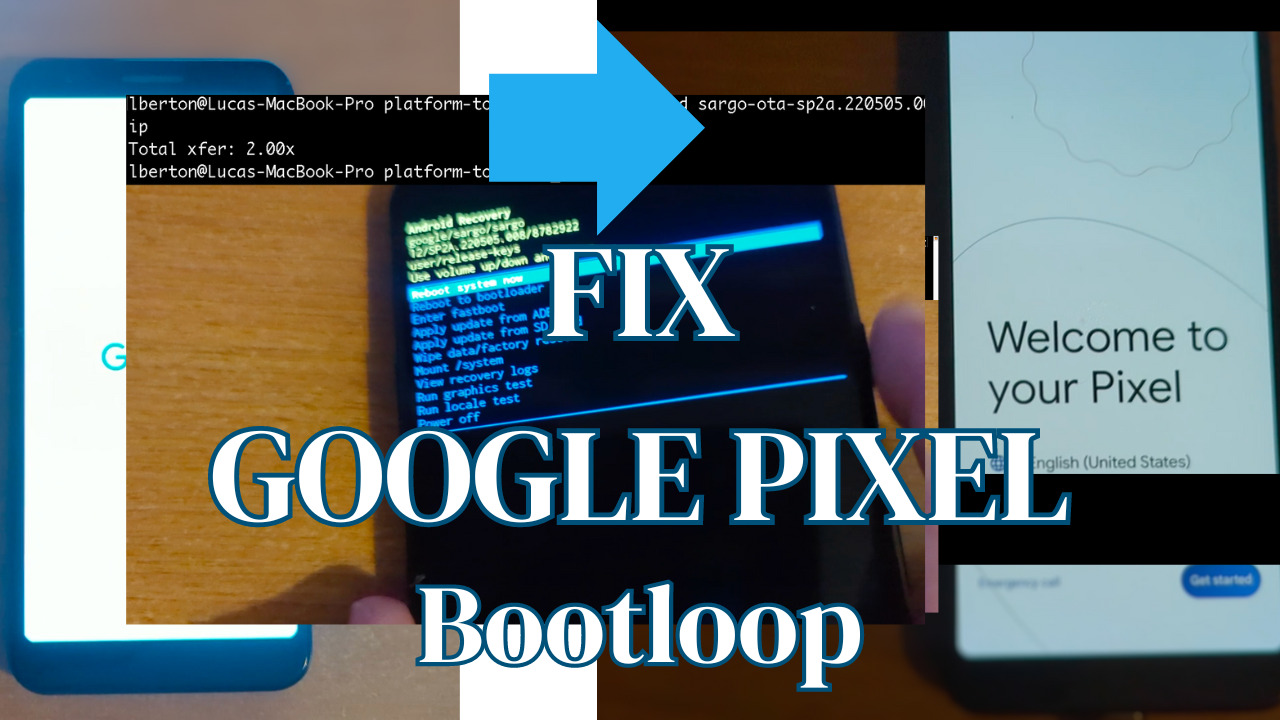
Bootloop issues can be frustrating, especially when they occur on your Google Pixel device. If you find yourself stuck in a bootloop, don’t panic — there are steps you can take to resolve the problem. In this guide, we’ll walk you through the process of using ADB and Fastboot utilities to fix the bootloop issue on your Google Pixel. Experiencing technical issues with your Google Pixel can be a source of frustration, especially when faced with a bootloop. However, there’s hope in the form of Rescue OTA (Over-The-Air) updates, a solution that can revive your device without the need for extensive data wipes or bootloader unlocking. In this guide, we’ll walk you through the process of applying a Rescue OTA to your Pixel, providing detailed steps for Windows 10, while emphasizing that the basic concepts apply to MAC, Linux, and other Windows versions.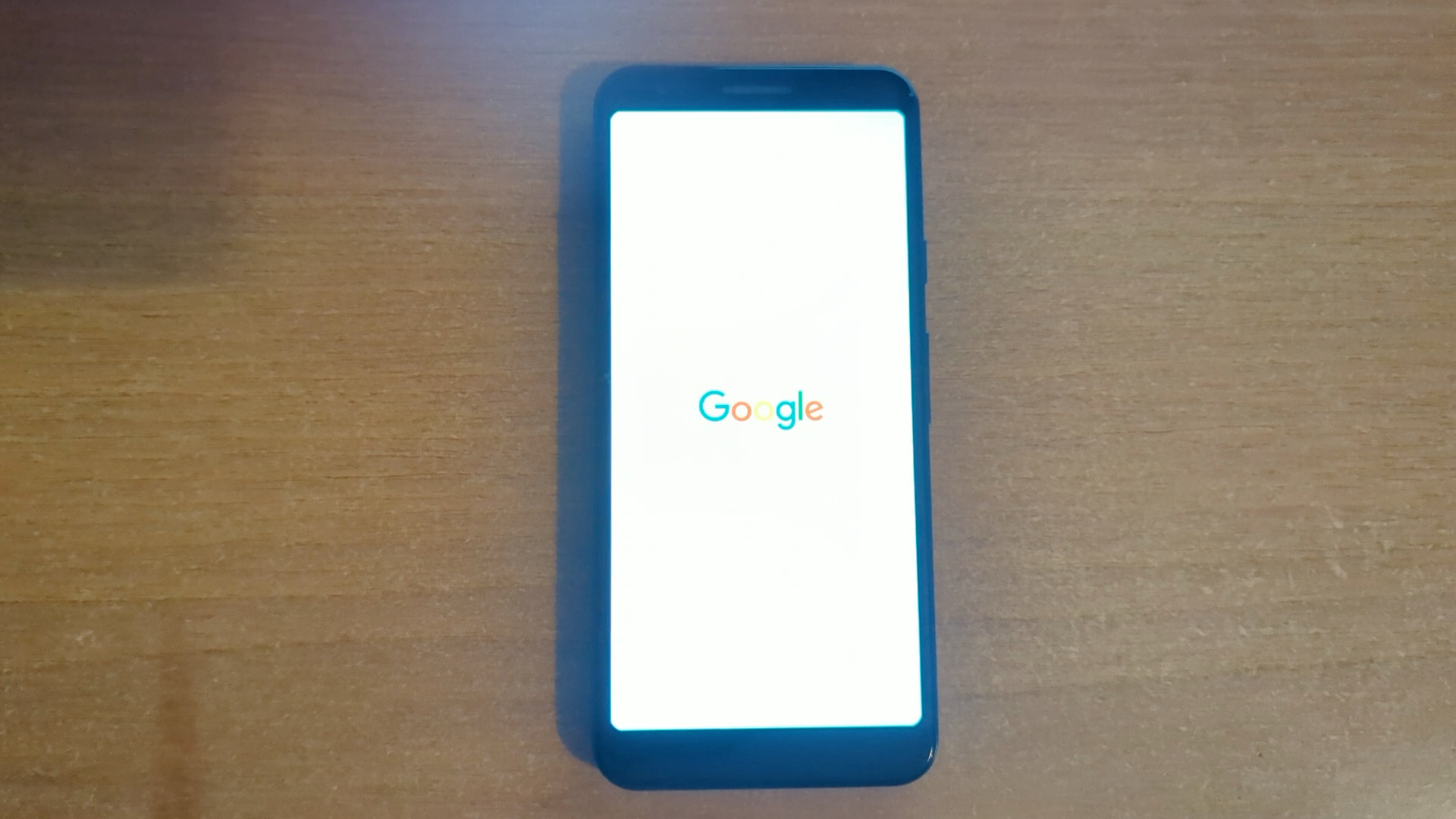
See also: Ansible Troubleshooting: Fix Missing amazon.aws.ec2_ami_info
Install Android SDK Platform Tools
Android SDK Platform-Tools is a component of the Android SDK. It includes tools that interface with the Android platform, primarilyadb and fastboot.
Step 1: Downloading ADB and Fastboot Utilities
The first step in resolving a bootloop issue is to download the latest version of ADB and Fastboot utilities from Google’s official website (https://developer.android.com/tools/releases/platform-tools). These tools are essential for interacting with your device at a low level and can help you diagnose and fix the problem.- Visit Google’s website and download the ADB and Fastboot zip file.
- Extract the downloaded zip file to a directory of your choice. For simplicity, we’ll use “
c:\adb” for Windows or “~/adb” for Linux and macOS in this guide.
Step 2: Setting Up ADB and Fastboot
Once you have downloaded and extracted the utilities, it’s important to ensure that the directory containing these tools is in the execution path for your system.For Windows:
- Click on the Windows icon in the lower left of the screen.
- Scroll down to Windows System and click on it, then click on Control Panel.
- Click on System and Security, then click on System.
- Click on Advanced System Settings.
- Click on Environment Variables.
- Under System Variables, highlight Path, then click Edit.
- Click on New and add the destination location directory, which is “c:\adb.”
- Click OK to save the changes.
- Edit the file
~/.profile. - Add this to the end of the file:
export PATH=$PATH:~/adb. - Ensure that the adb and fastboot files in
~/adbhave execute permissions.
- Edit the file
~/.bash_profile. - Add this to the end of the file:
export PATH=$PATH:~/adb. - Ensure that the
adbandfastbootfiles in~/adbhave execute permissions.
Step 3: Using ADB and Fastboot to Fix Bootloop
With ADB and Fastboot utilities set up, you can now use them to diagnose and fix the bootloop issue on your Google Pixel. For detailed instructions on how to use ADB and Fastboot, refer to the official documentation provided by Google. Link to Official Documentation
We can test the successful installation of the tool from the command line.
- adb:
adb --version
Android Debug Bridge version 1.0.41
Version 34.0.5-10900879
Installed as /Users/lberton/adb/adb- fastboot:
fastboot --version
fastboot version 34.0.5-10900879
Installed as /Users/lberton/adb/fastboot
Rescue Google Pixel
The following steps sideload the OTA update to the Google Pixel device.Step 1: Install ADB and FASTBOOT Utilities
Verify that ADB and FASTBOOT utilities are correctly installed on your computer. Follow our separate guide for detailed instructions on setting up these essential tools.On the Computer:
Right-click on the Windows icon (Command Prompt for MAC and Linux users). Open Device Manager by right-clicking on the Windows icon (Not applicable to MAC and Linux).
On the Pixel:
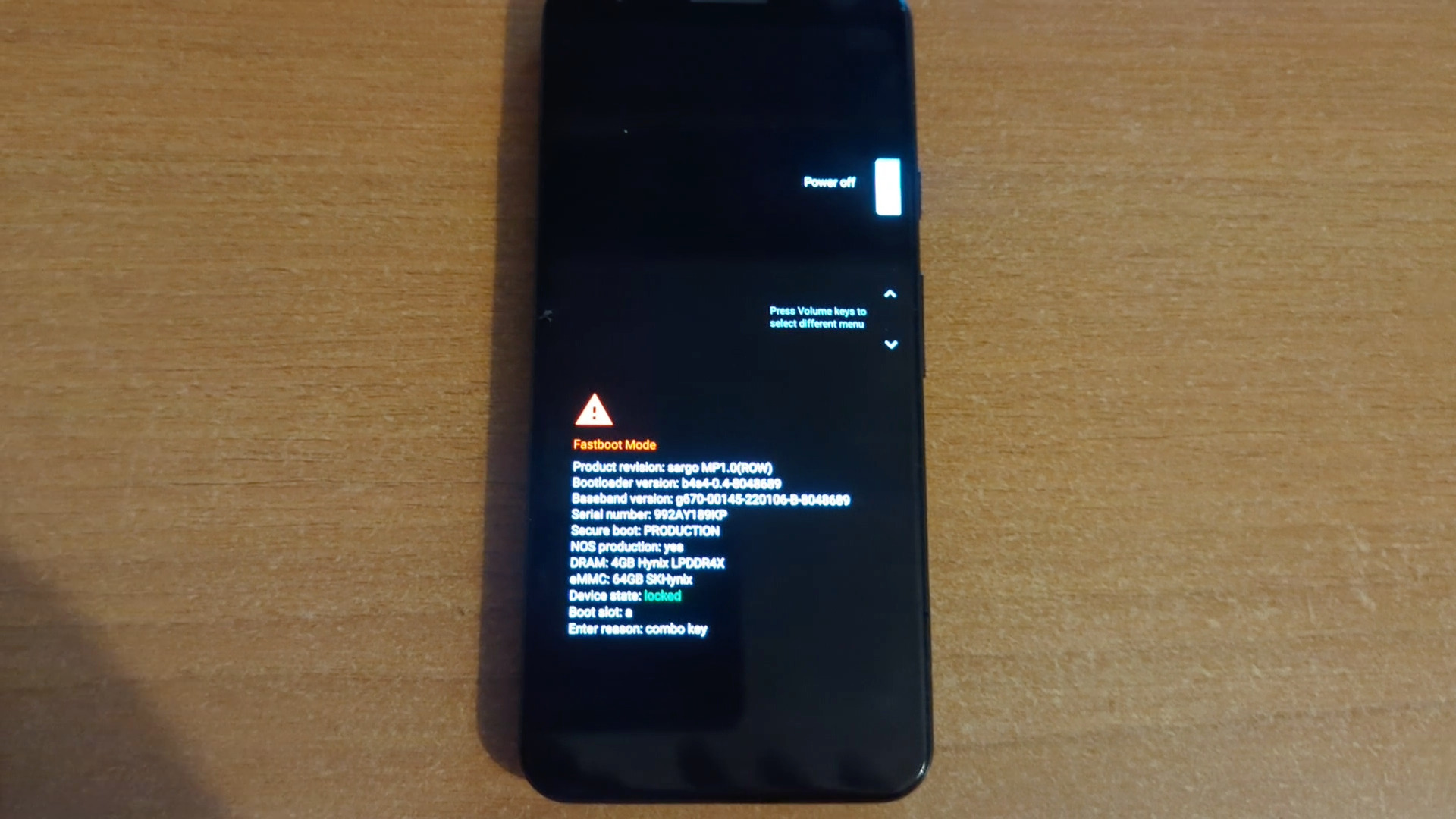
Boot your Pixel into Fastboot Mode by powering it off and holding Power + Volume Down. Connect your Pixel to the computer using a USB cable.
Step 2: Confirm Proper Installation
Verify that the drivers are correctly installed:Execute the command fastboot devices in the command prompt. If your Pixel's serial number is displayed, proceed. This is the output on with my device:
fastboot devices
992AY189KP  fastboot
Note: If steps 4 or 5 do not yield the expected results, seek assistance before proceeding.
Step 3: Enter Recovery Mode
On the Pixel:
- Disconnect the USB cable.
- Navigate to “
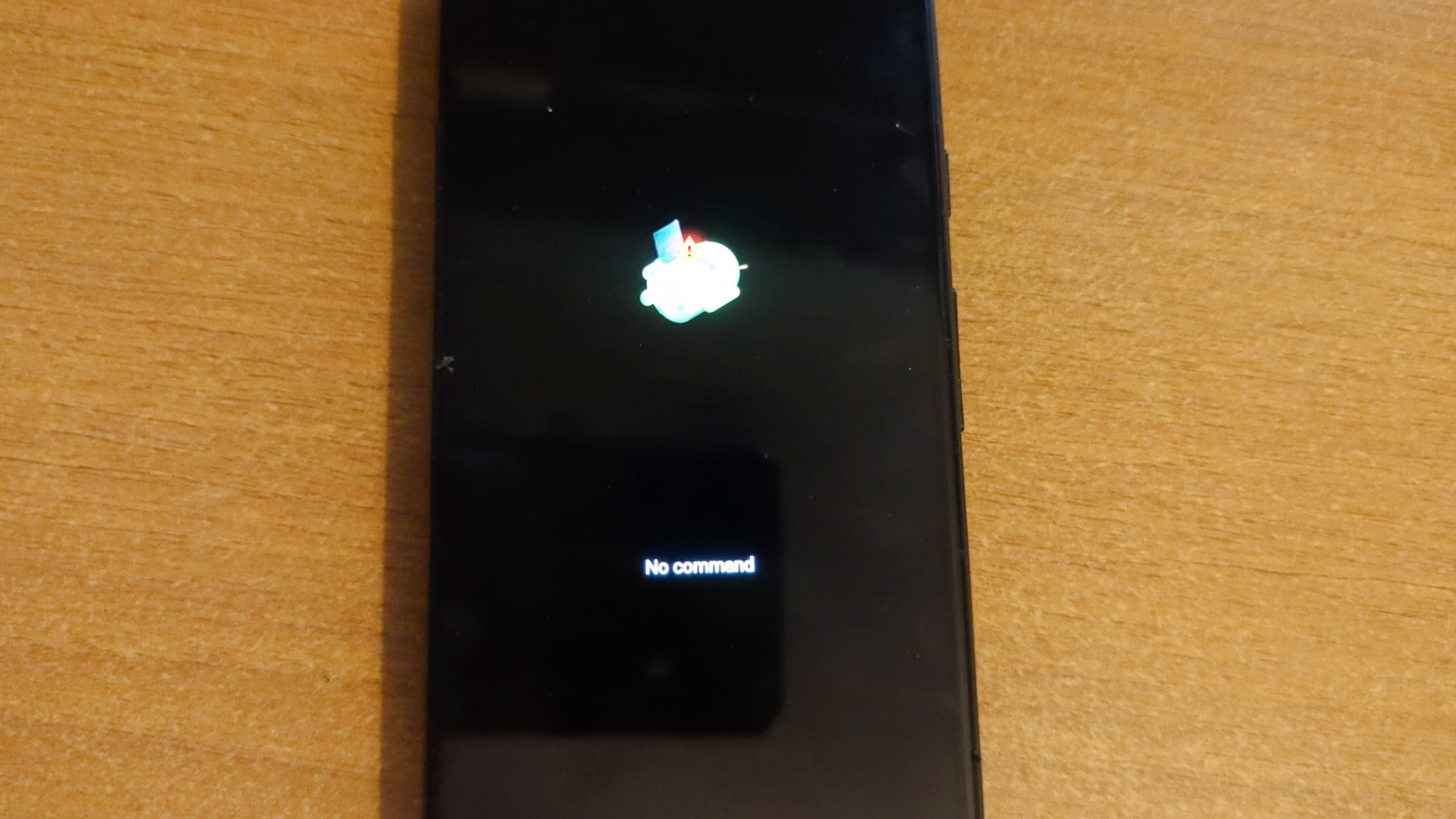
Recovery Mode” usingVolume Downand select it with thePowerbutton.
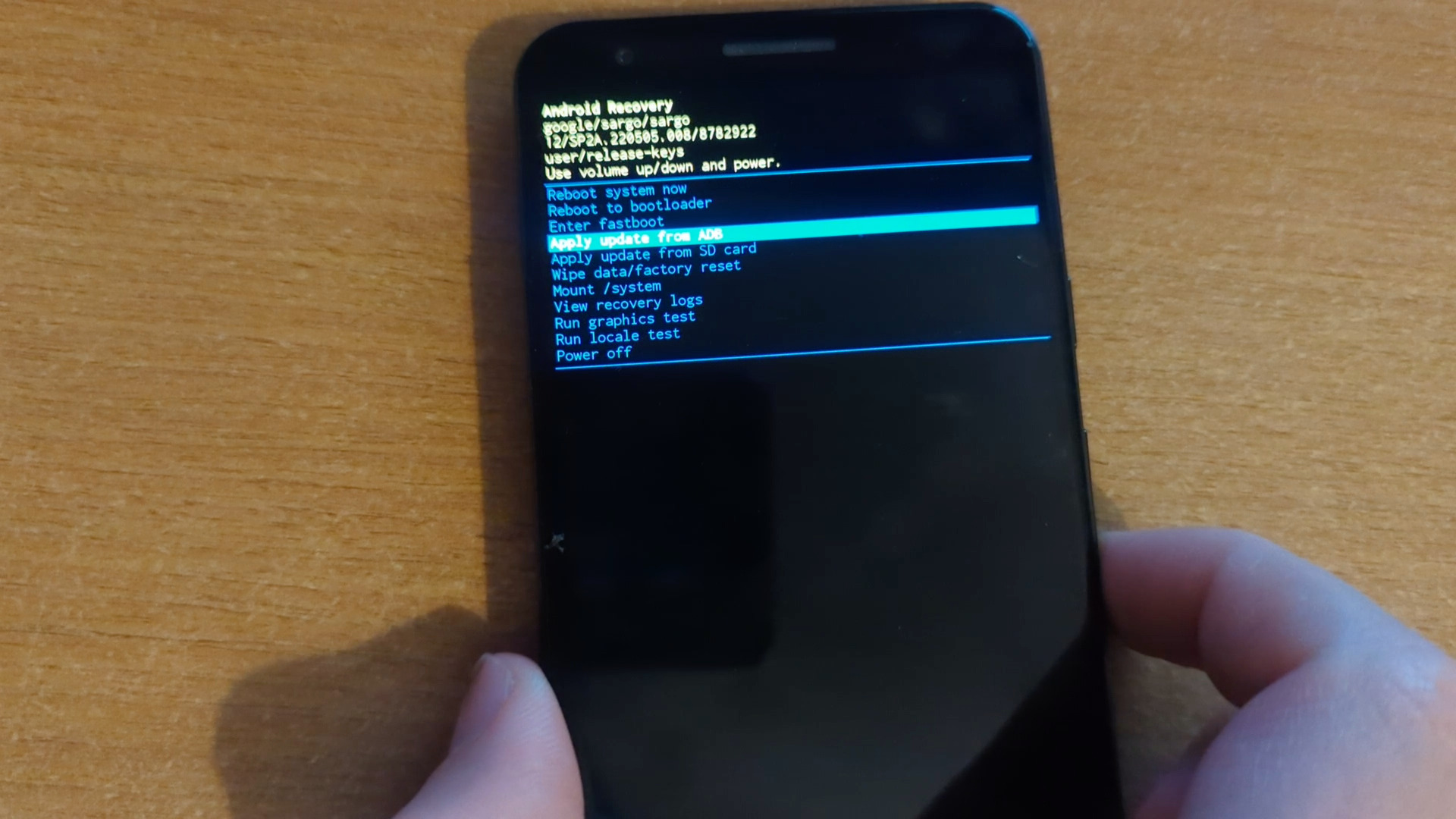
Step 4: Apply Update from ADB
On the Pixel:
- Highlight “
Apply Update from ADB” usingVolume Downand select it with thePowerbutton. - Reconnect the Pixel to the computer.
adb devices to ensure successful connection.
On the Computer:
- Create a folder (e.g.,
c:\MyPixel). - Download the appropriate OTA file based on your Build Number from https://developers.google.com/android/ota.
- Move the downloaded OTA zip file to the created folder.
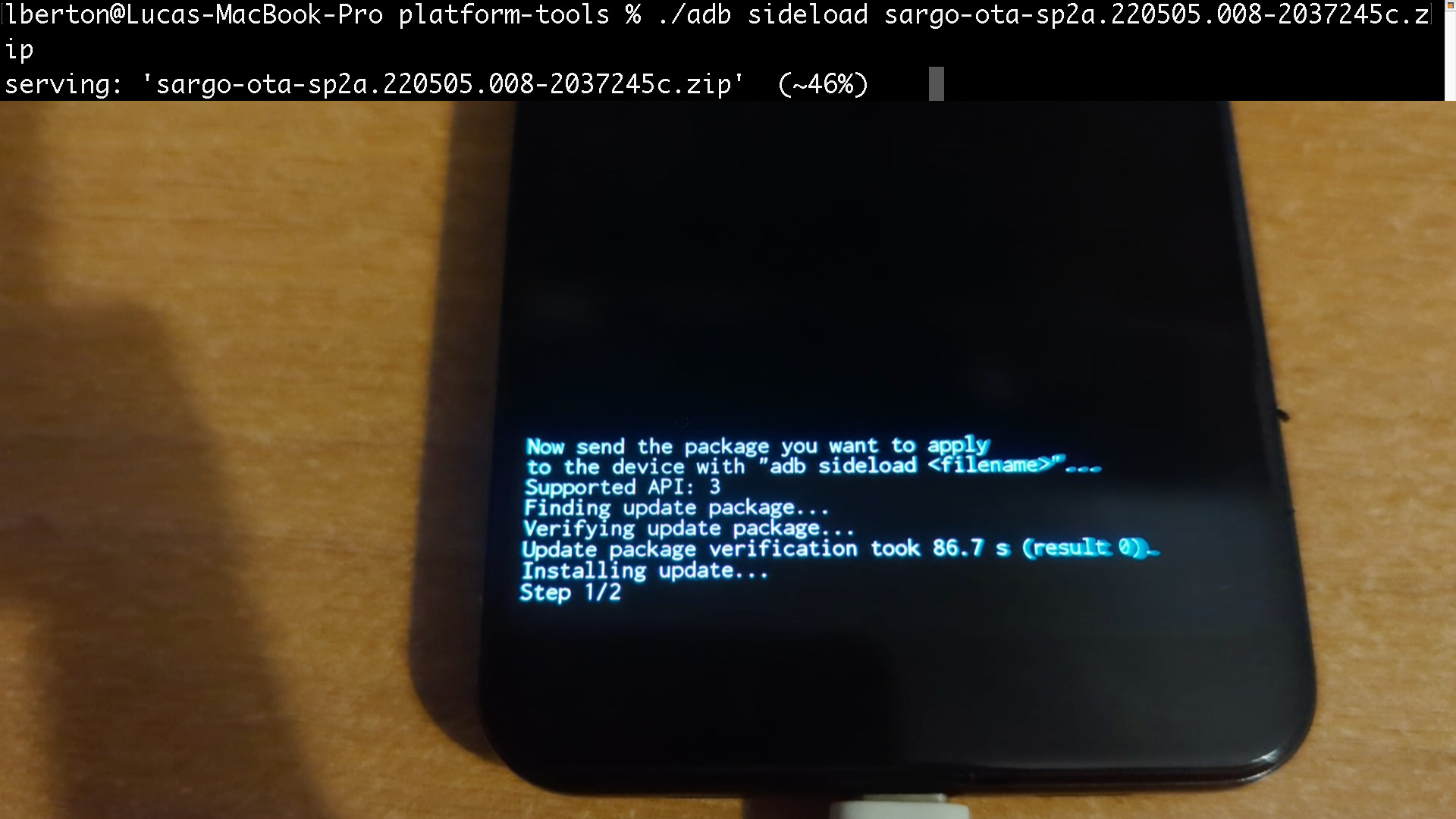
Step 5: Sideloading the Rescue OTA
On the Pixel:
- If needed, re-initiate “
Apply Update from ADB.”
On the Computer:
- Execute the sideload command in the command prompt, adjusting the filename accordingly.
adb sideload sargo-ota-sp2a.220505.008-2037245c.zipp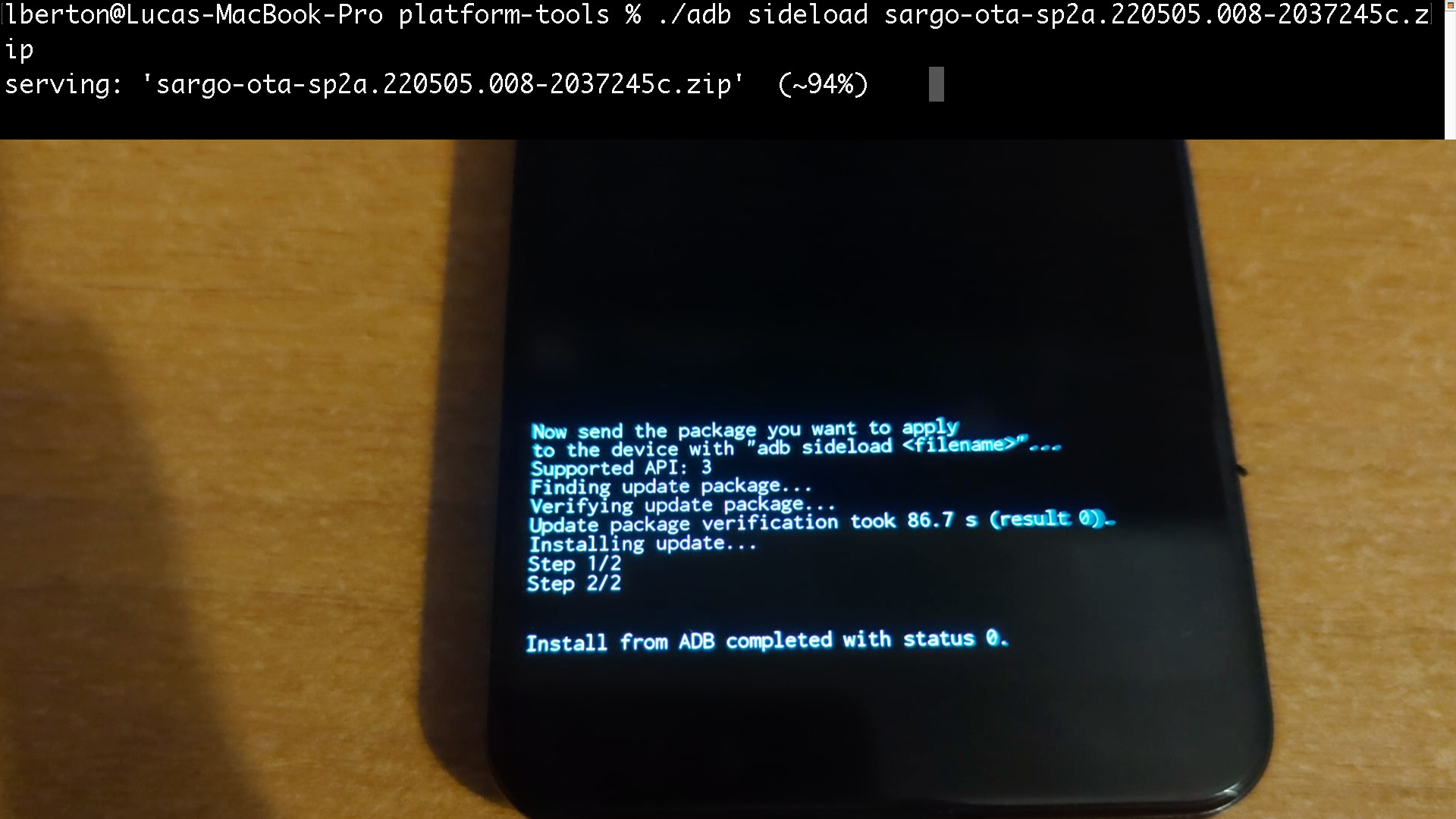
Step 6: Completion and Reboot
- Monitor progress messages on both the computer and Pixel.
- Once completed, highlight “
Reboot system now” and tapPower.
adb sideload sargo-ota-sp2a.220505.008-2037245c.zip
* daemon not running; starting now at tcp:5037
* daemon started successfully
Total xfer: 2.00x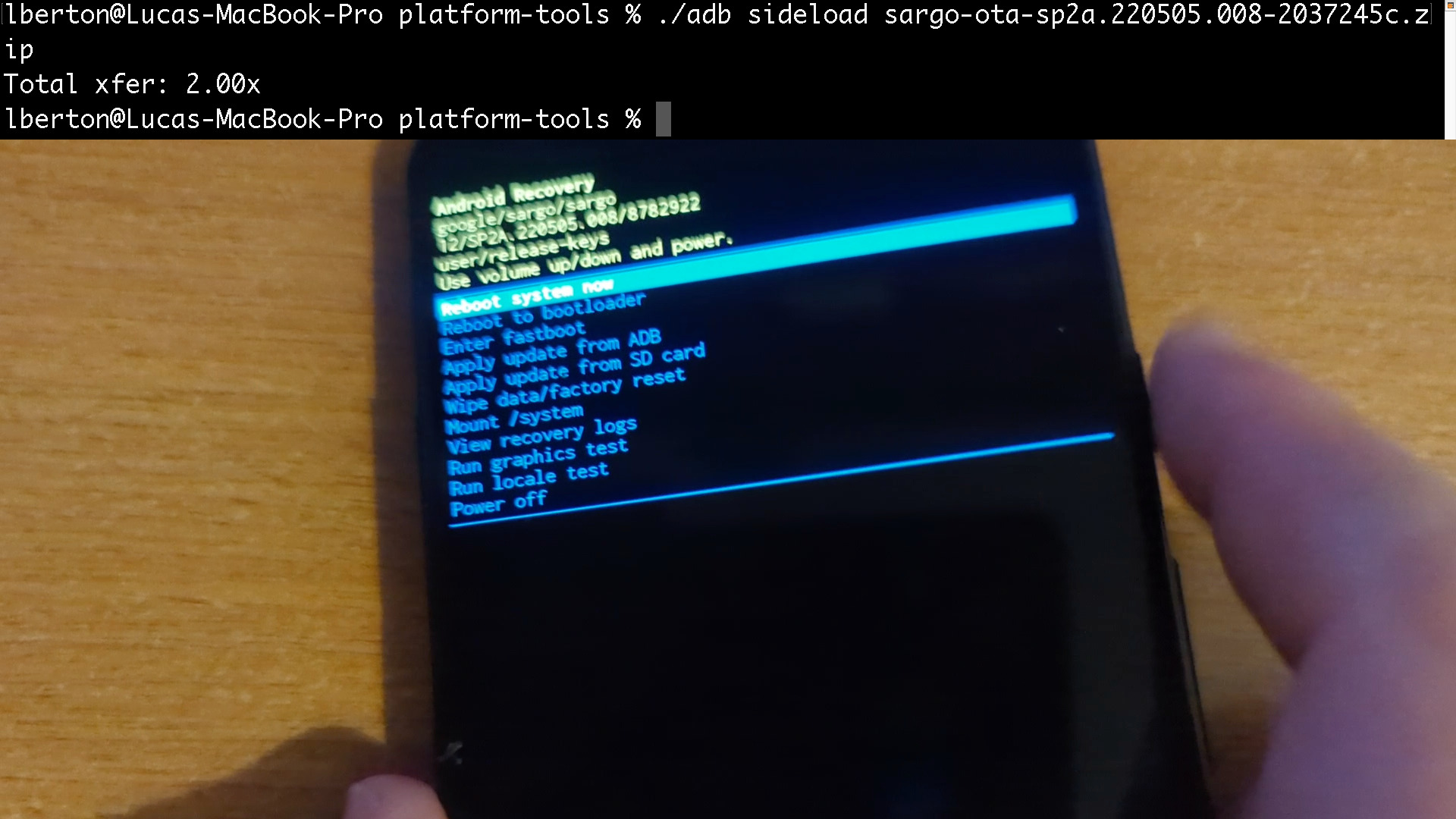
See also: Ansible Troubleshooting: Resolving community.aws.ec2_instance Issues
Conclusion
Resolving a bootloop issue on your Google Pixel may seem daunting, but by following these steps and utilizing ADB and Fastboot utilities, you can troubleshoot and fix the problem effectively. Remember to follow the instructions carefully and refer to official documentation for additional guidance. If all else fails, you may consider reaching out to Google support for further assistance.
Related Articles
Category: installation