Install Visual Studio Code: Manual, Homebrew, Ansible Methods
By Luca Berton · Published 2024-01-01 · Category: installation
Learn how to install Visual Studio Code on macOS using manual download, Homebrew, or Ansible. Explore the pros and cons of each installation method.
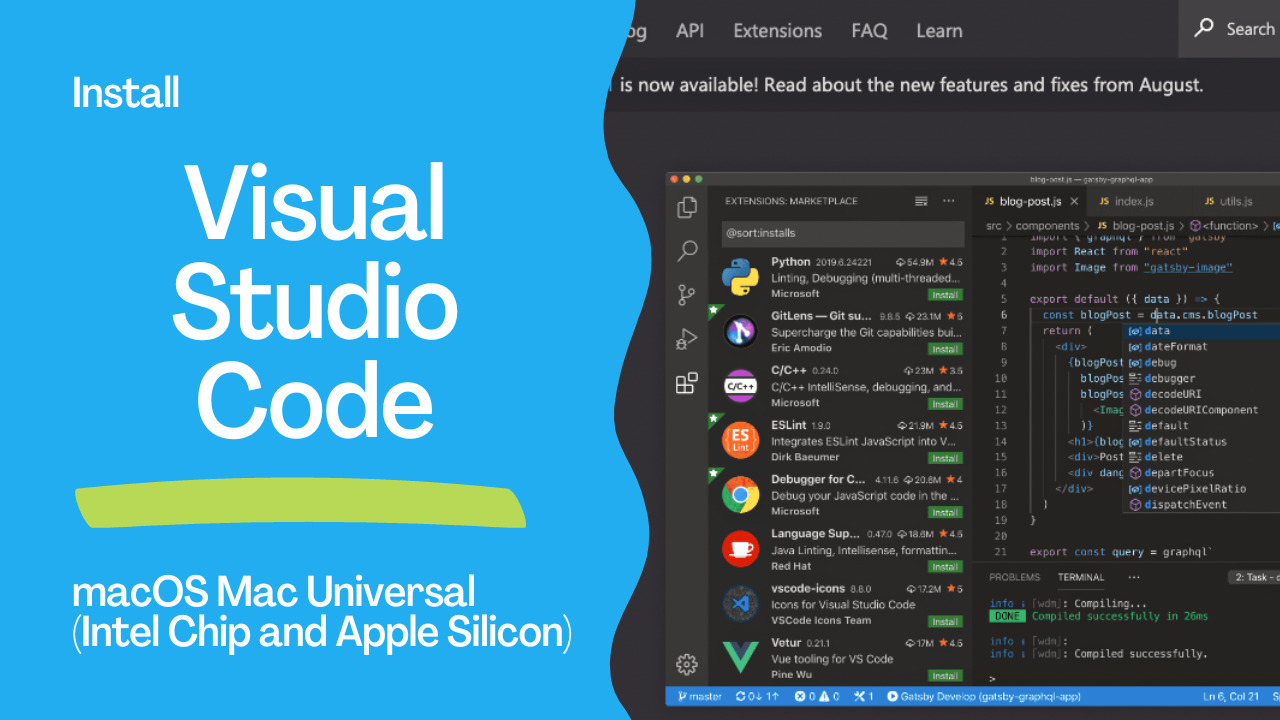
Visual Studio Code
Visual Studio Code is an excellent Free and Built Open Source IDE that speeds up any software development nowadays. It runs everywhere. The main four feature are:- IntelliSense
- Run and Debug
- Built-in Git
- Extensions
See also: Install Ansible on macOS Monterey with Homebrew
Manual way
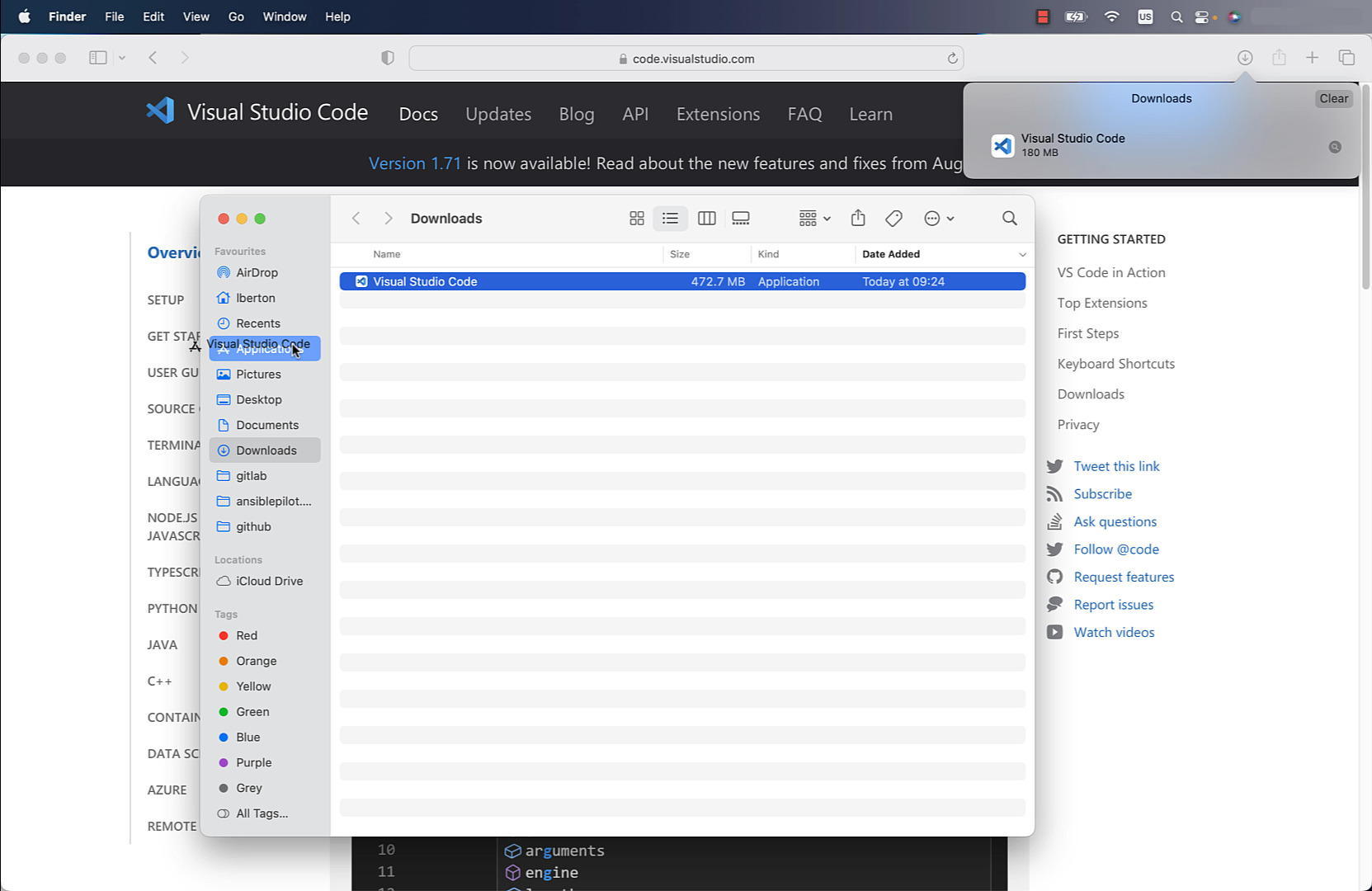
Manually download and install from the official website https://code.visualstudio.com/.
- Pro: easy for new users
- Cons: time-consuming to upgrade, time-consuming for multiple machines to install and upgrade
Homebrew way
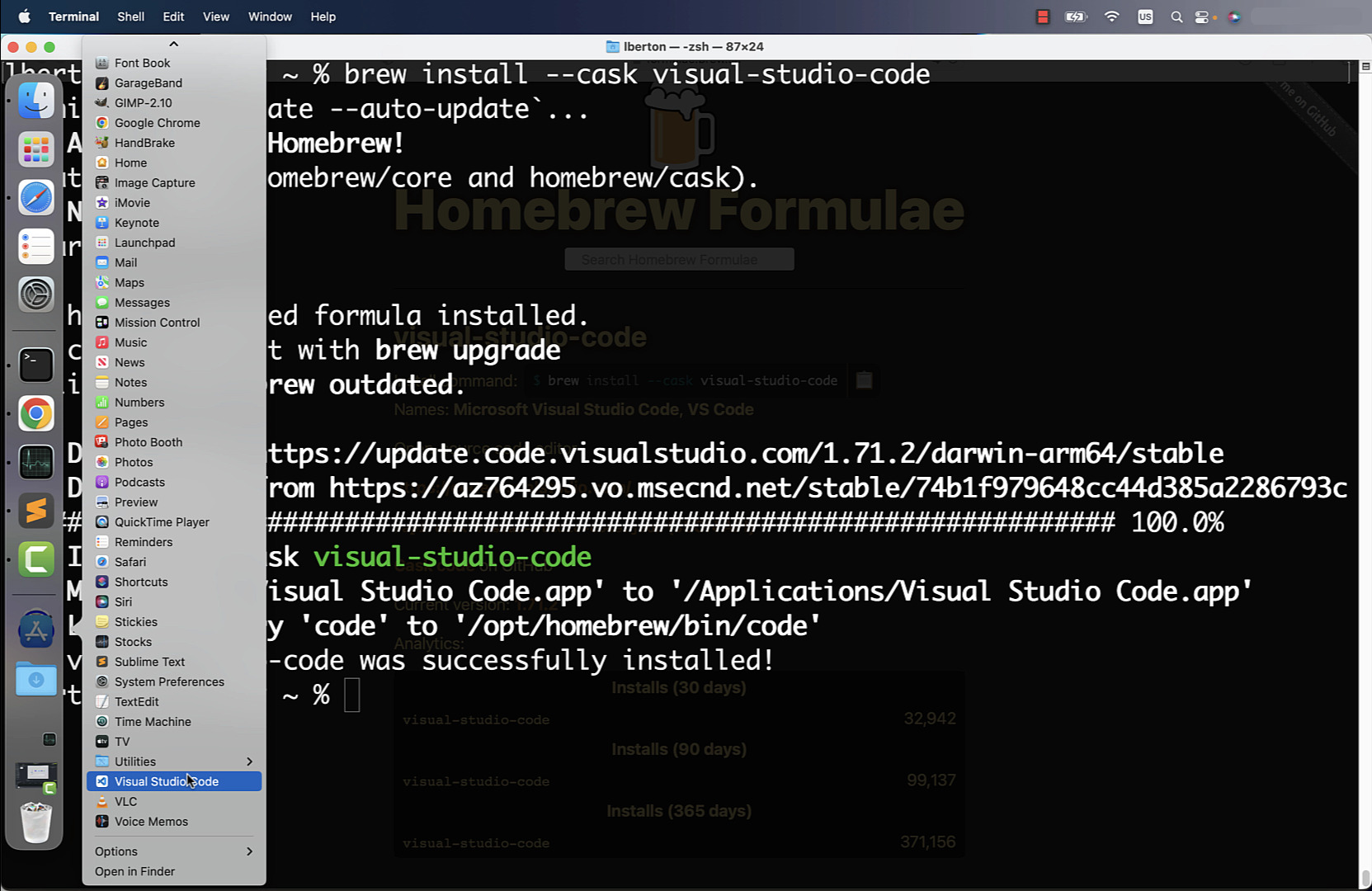
Using the Homebrew package manager, you can easily search and install the visual-studio-code package.
- Pro: fast install and upgrade
- Cons: require Terminal skill, time-consuming for multiple machines installation and upgrade
See also: Run Windows 11 Client ARM64 Insider Preview in Apple Silicon (M1, M2, M3) with VMware Fusion
Ansible way
Using Ansible, you can quickly deploy an Ansible Playbook to install the visual-studio-code package via Homebrew.
- Pro: fast install and upgrade, unlock parallel multiple machine installation
- Cons: require Terminal skill
code
- install-visualstudiocode.yml
---
- name: install Visual Studio Code Mac Universal
  hosts: all
  tasks:
    - name: install visual-studio-code
      community.general.homebrew:
        name: visual-studio-code
        state: latest
update_homebrew: true- inventory
localhost ansible_connection=localexecution
There is currently a bug in the module report, but it successfully installs Visual Studio Code.
lberton@Lucas-MBP macos % ansible-playbook -i inventory install-visualstudiocode.yml
PLAY [install Visual Studio Code Mac Universal] ***************************************
TASK [Gathering Facts] ****************************************************************
[WARNING]: Platform darwin on host localhost is using the discovered Python
interpreter at /opt/homebrew/bin/python3.10, but future installation of another Python
interpreter could change the meaning of that path. See
https://docs.ansible.com/ansible-
core/2.13/reference_appendices/interpreter_discovery.html for more information.
ok: [localhost]
TASK [community.general.homebrew] *****************************************************
fatal: [localhost]: FAILED! => {"changed": false, "msg": ""}
PLAY RECAP ****************************************************************************
localhost                  : ok=1    changed=0    unreachable=0    failed=1    skipped=0    rescued=0    ignored=0
lberton@Lucas-MBP macos %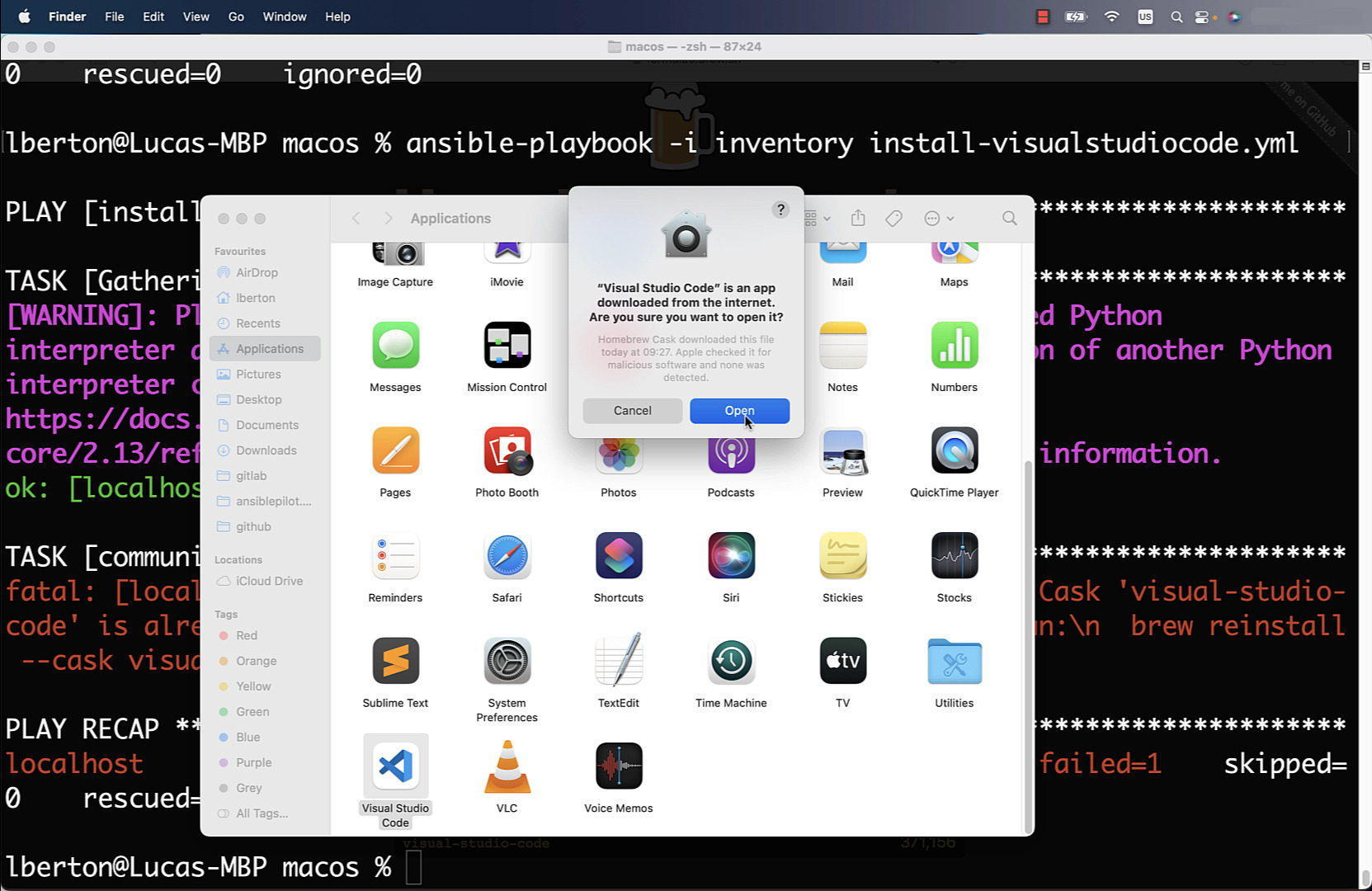
idempotency
lberton@Lucas-MBP macos % ansible-playbook -i inventory install-visualstudiocode.yml
PLAY [install Visual Studio Code Mac Universal] ***************************************
TASK [Gathering Facts] ****************************************************************
[WARNING]: Platform darwin on host localhost is using the discovered Python
interpreter at /opt/homebrew/bin/python3.10, but future installation of another Python
interpreter could change the meaning of that path. See
https://docs.ansible.com/ansible-
core/2.13/reference_appendices/interpreter_discovery.html for more information.
ok: [localhost]
TASK [community.general.homebrew] *****************************************************
fatal: [localhost]: FAILED! => {"changed": false, "msg": "Warning: Cask 'visual-studio-code' is already installed.\n\nTo re-install visual-studio-code, run:\n  brew reinstall --cask visual-studio-code"}
PLAY RECAP ****************************************************************************
localhost                  : ok=1    changed=0    unreachable=0    failed=1    skipped=0    rescued=0    ignored=0
lberton@Lucas-MBP macos %
Conclusion
Now you know three ways to install and maintain up-to-date Visual Studio Code for Mac Universal (Intel Chip and Apple Silicon): Manual, Homebrew and Ansible.
See also: Install TechSmith Camtasia 2022 (Screen Recorder and Video Editor) in macOS
Related Articles
- Ansible inventory best practices
- Install Ansible on macOS Monterey with Homebrew
- Run Windows 11 Client ARM64 Insider Preview in Apple Silicon (M1, M2, M3) with VMware Fusion
Ansible Extensions for VS Code
After installing VS Code, add essential Ansible extensions:
Red Hat Ansible Extension
# Install from command line
code --install-extension redhat.ansible
The Ansible extension provides:
- YAML syntax highlighting for playbooks
- Ansible Lint integration
- Auto-completion for module names and parameters
- Jinja2 template support
- Ansible Lightspeed AI assistance
Additional Recommended Extensions
code --install-extension redhat.vscode-yaml
code --install-extension ms-python.python
code --install-extension wholroyd.jinja
Configure VS Code for Ansible
Create a workspace settings file:
{
  "ansible.python.interpreterPath": "/usr/local/bin/python3",
  "ansible.ansible.path": "/usr/local/bin/ansible",
  "ansible.ansibleLint.enabled": true,
  "ansible.ansibleLint.path": "/usr/local/bin/ansible-lint",
  "files.associations": {
    "*.yml": "ansible",
    "*.yaml": "ansible"
  },
  "editor.tabSize": 2,
  "editor.insertSpaces": true
}
Automate VS Code Installation with Ansible
---
- name: Install VS Code on macOS
  hosts: localhost
  connection: local
  tasks:
    - name: Install VS Code via Homebrew Cask
      community.general.homebrew_cask:
        name: visual-studio-code
        state: present

    - name: Install Ansible extension
      ansible.builtin.command:
        cmd: code --install-extension redhat.ansible
      changed_when: true

    - name: Install YAML extension
      ansible.builtin.command:
        cmd: code --install-extension redhat.vscode-yaml
      changed_when: true
FAQ
Which VS Code download should I choose for Mac?
Choose Universal — it runs natively on both Intel and Apple Silicon Macs. If you want the smallest download, pick the architecture-specific version for your chip.
Does Ansible Lightspeed work in VS Code on Mac?
Yes. The Red Hat Ansible extension includes Lightspeed AI assistance on all platforms, including macOS on both Intel and Apple Silicon.
Can I use VS Code with Ansible in a virtual environment?
Yes. Set ansible.python.interpreterPath in VS Code settings to point to your venv's Python binary (e.g., ~/ansible-venv/bin/python3).
How do I check if my Mac has Intel or Apple Silicon?
Click Apple menu → About This Mac. Look for "Chip" — if it says M1/M2/M3/M4, it's Apple Silicon. If it says Intel, it's an Intel Mac.
Category: installation
Watch the video: Install Visual Studio Code: Manual, Homebrew, Ansible Methods — Video Tutorial